Pixel tracking failures are one of the most damaging and underdiagnosed problems in paid advertising. When your tracking pixel stops firing correctly, your ad platforms lose the conversion signals they need to optimize campaigns. Budgets get misallocated, ROAS looks artificially low or high, and your team makes decisions based on data that simply does not reflect reality.
For B2B SaaS companies running paid acquisition across Meta, Google, LinkedIn, and other channels, the stakes are even higher. A broken pixel does not just mean missing data points. It means your attribution model is compromised, your customer journey is invisible, and your growth team is flying blind.
The good news is that most pixel tracking failures follow predictable patterns and can be diagnosed systematically. Silent failures where the pixel code is present but never fires, duplicate events inflating your conversion counts, single-page application breakdowns, and post-deployment wipeouts all have identifiable fingerprints once you know what to look for.
This guide walks you through a proven process for identifying exactly where your pixel tracking has broken down, fixing the root cause, and building a more resilient tracking setup that does not depend entirely on browser-based pixels. Whether you are dealing with duplicate events, missing conversions, or a complete tracking blackout, these steps will help you restore data accuracy and get your campaigns back on solid footing.
Step 1: Confirm the Failure with a Pixel Audit
Before you can fix anything, you need to know exactly what is broken. Jumping straight to solutions without a clear audit often means you fix the wrong thing, or fix one issue while missing three others running in parallel.
Start with your ad platform's native diagnostic tools. Install the Meta Pixel Helper Chrome extension and visit the pages where your key conversion events should fire. The extension will show you whether the pixel is loading, which events are triggering, and whether any errors are present. For Google, use Google Tag Assistant to validate that your Google tags are firing correctly and that the right conversion actions are being recorded.
As you audit, look specifically for three failure states. The first is the pixel not loading at all, which typically means the base code is missing from the page. The second is the pixel firing on the wrong pages, such as a purchase event firing on every page load instead of only on the confirmation page. The third is duplicate events firing, which happens when the pixel is installed both through a tag manager and hardcoded directly in the site template, causing double-counting that inflates your reported conversions.
Once you have checked the front-end behavior, cross-reference your ad platform's reported conversion numbers against your CRM or backend data. Pull the last 30 days of form submissions or trial signups from your CRM and compare that count against what Meta or Google reports. A significant gap in either direction is a clear signal that something is off. If your CRM shows far more conversions than your ad platform, you are likely under-tracking. If your ad platform shows more, you may have duplicate events firing.
Document which specific events are affected. Note whether the issue is isolated to a single event type like form submissions, or whether it spans multiple events including page views and purchases. Pay close attention to when the discrepancy started. A specific date often points directly to a code deployment, CMS update, or site redesign that triggered the failure.
Success indicator: You have a clear list of which events are broken, which are duplicating, and roughly when the issue started. This becomes your diagnostic map for the steps that follow.
Step 2: Identify the Root Cause Using Browser Dev Tools
Now that you know what is broken, it is time to find out why. This is where Chrome DevTools becomes your most valuable tool, and you do not need to be a developer to use it effectively.
Open Chrome DevTools by pressing F12 or right-clicking and selecting "Inspect." Navigate to the Network tab and filter requests by typing "pixel," "fbq," "gtag," or the relevant pixel identifier for your platform. Then trigger the conversion event you are investigating, whether that means submitting a form, clicking a button, or navigating to a specific page. Watch whether the pixel request appears in the network log at all.
If the request appears but shows a 400 or 500 status code, that indicates either the pixel ID is incorrect or the server is rejecting the call. A 400 error typically means the request was malformed, often because a pixel ID was copied incorrectly or a parameter is missing. A 500 error points to a server-side issue.
If no pixel request appears at all, switch to the Console tab and look for JavaScript errors. A single JavaScript error earlier in the page load can prevent all subsequent scripts from executing, including your pixel code. Tag manager conflicts are a common culprit here, especially when multiple containers are firing on the same page or when a custom HTML tag contains a syntax error.
Check your tag manager setup directly. Open Google Tag Manager and verify that your pixel tag is actually published in the current container version, not just saved as a draft. A surprisingly common issue is a team member creating or editing a pixel tag but never publishing the container, meaning the change never made it to the live site.
Run through the most common root causes systematically. A recent site redesign may have removed the base pixel code from the new template. A CMS update may have stripped script tags from pages where they were previously embedded. Ad blocker browser extensions can suppress pixel requests during your own testing, leading you to believe the pixel is broken when it is actually working for users who do not have blockers installed. Duplicate pixel IDs firing from multiple tag manager containers can cause confusing behavior that looks like random misfires.
Success indicator: You can point to a specific technical reason why the pixel is not firing as expected. "The base pixel code was removed during the site redesign last Tuesday" is the kind of clear root cause you are looking for.
Step 3: Fix Browser-Side Pixel Issues and Validate the Repair
With the root cause identified, you can now make targeted fixes rather than guessing. The approach depends on what you found in the previous step.
If the pixel code is missing from your site entirely, reinstall it through your tag manager rather than hardcoding it into your site template. Using a tag manager gives you centralized control over all your tracking tags, makes future updates easier, and reduces the risk of the pixel getting stripped again during a CMS update. Hardcoded pixels are harder to audit and easier to accidentally break during development work.
If duplicate events are the problem, consolidate to a single pixel implementation. Decide whether your tag manager or a hardcoded snippet will be the authoritative source, then remove the other. Check both your tag manager container and your site's source code to confirm only one implementation remains active. This single step can dramatically improve the accuracy of your conversion reporting.
For teams running single-page applications built on React, Vue, or Angular, standard page view triggers often fail because the URL changes without a full page reload. The browser never fires the traditional page load event that most pixel triggers rely on. To handle this, set up history change triggers in Google Tag Manager. These triggers fire whenever the browser's history API is called, which is exactly what SPAs use to navigate between views. This fix is often overlooked and can account for significant conversion tracking gaps in modern web applications.
After making any fix, do not assume it worked. Use the platform's test event tools to validate before pushing to production. Meta's Test Events tool, found inside Meta Events Manager, lets you see conversion events flowing in real time as you interact with your site. Google Tag Assistant's preview mode shows you exactly which tags fired on each page and whether any errors occurred.
Run end-to-end tests by completing an actual conversion action on your site, such as submitting a test lead form or completing a trial signup flow. Verify the event appears in your ad platform's event manager within a few minutes. Check that the event name, parameters, and value are all populating correctly, not just that the event fired.
Success indicator: Your pixel diagnostic tools show events firing cleanly with no errors, no duplicates, and accurate parameters. Your test conversions appear in the ad platform's event manager as expected.
Step 4: Implement Server-Side Tracking to Fill the Gaps
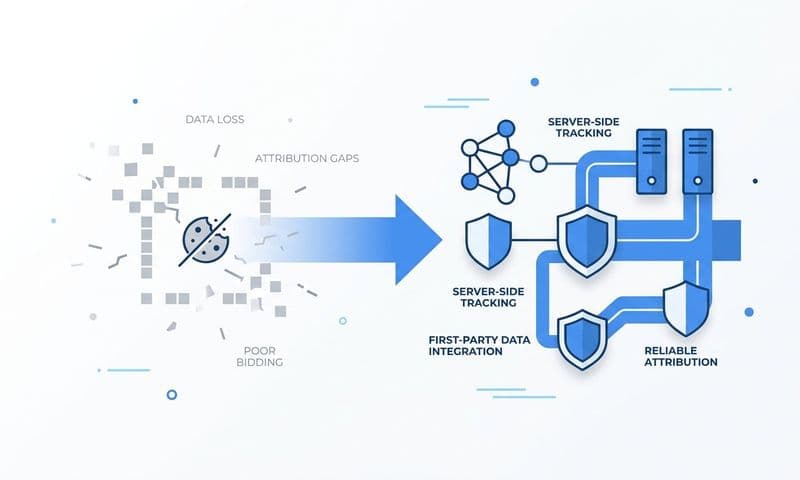
Here is something important to understand: even a perfectly implemented browser pixel is not enough. Browser-based pixels are inherently fragile. Ad blockers, iOS privacy changes, and increasingly strict browser restrictions can silently suppress a meaningful portion of conversion events even when your pixel code is technically correct. The events simply never reach the ad platform, and you have no way of knowing from the browser side.
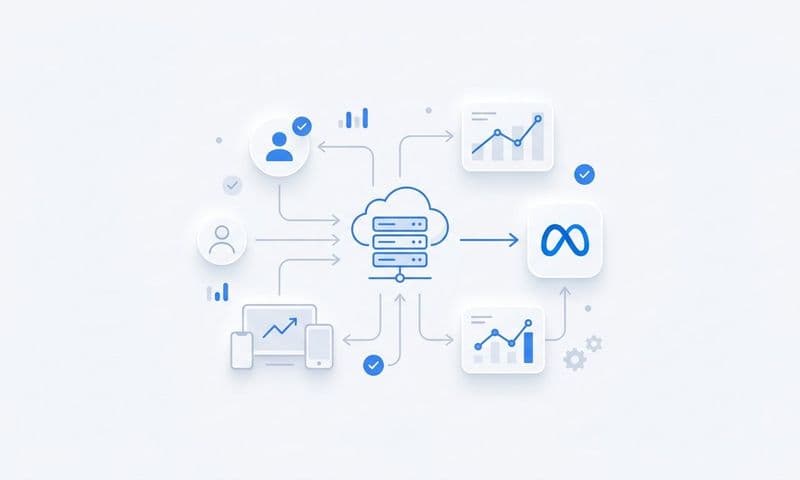
This is why server-side tracking is no longer optional for B2B SaaS companies that depend on paid acquisition. Server-side tracking, also called Conversion API or CAPI, sends conversion data directly from your server to the ad platform, bypassing the browser entirely. Because the data travels server-to-server, it is not affected by ad blockers, browser privacy settings, or iOS restrictions.
For Meta, setting up the Conversions API means your server sends the same conversion events that your pixel fires. This creates a redundant layer of data collection. The critical piece is event deduplication: you need to pass a unique event ID with both the pixel event and the CAPI event so that Meta can recognize they represent the same conversion and count it only once. Without deduplication, you will end up with inflated conversion counts that make your campaigns look more effective than they are.
For Google, Enhanced Conversions serves a similar purpose. It passes hashed first-party data, such as email addresses from form submissions, alongside your standard conversion tags. This allows Google to match conversions more accurately, especially for users who are signed into a Google account, improving your reported conversion data and the quality of signals feeding into Smart Bidding.
When prioritizing which events to implement server-side first, focus on your highest-value conversion actions: form submissions, trial signups, demo requests, and any event that is directly tied to revenue. These are the events your ad platforms use most heavily for optimization, and they are the ones where data loss has the biggest impact on campaign performance.
It is worth emphasizing that server-side tracking does not replace your browser pixel. The pixel still provides valuable real-time data and powers features like audience building and view-through attribution. Server-side tracking creates a redundant layer so that if the browser pixel fails or gets blocked, the conversion signal still reaches the ad platform through a more reliable channel.
Success indicator: Your ad platform's event match quality score improves and your reported conversion volume increases to better reflect what your backend data shows. You now have two independent signals reaching the platform for each key conversion event.
Step 5: Connect Your CRM Data to Close the Attribution Loop
Even with a working pixel and server-side tracking in place, you are still only capturing part of the picture for B2B SaaS companies. A lead that fills out a form is not the same as a lead that becomes a paying customer. If your ad platforms are optimizing toward form submissions, they are optimizing toward the top of your funnel, not toward the revenue that actually matters.
Offline conversion tracking bridges this gap. It lets you send CRM stage changes back to your ad platforms so they can optimize toward actual revenue-generating events, not just initial form fills. When a lead moves from "marketing qualified" to "sales qualified" to "closed-won" in your CRM, those events can be attributed back to the original ad click that started the journey.
To set this up, map your CRM pipeline stages to conversion events that you will send back to each ad platform. Decide which stages carry enough signal to be worth optimizing toward. For many B2B SaaS companies, "opportunity created" and "closed-won" are the two most valuable events to feed back to ad platforms. Sending these signals teaches the platform's algorithm what a high-value customer actually looks like, which improves the quality of future targeting.
Set up automated syncing so the process runs without manual intervention. When a deal closes in your CRM, that event should automatically be attributed back to the original ad click with the correct timestamp and revenue value. Manual CSV uploads work as a starting point but create lag and introduce human error. Automated syncing keeps your attribution data current and accurate.
This is where a platform like Cometly becomes critical. Cometly connects your ad spend data directly to your CRM and revenue data, giving you a single source of truth that shows which campaigns drove pipeline and closed revenue, not just clicks and leads. Instead of stitching together data from multiple disconnected tools, you get a unified view of the entire customer journey from first ad click through to closed-won revenue. That visibility changes how you allocate budget and which campaigns you scale.
Success indicator: You can see a direct line from ad spend to pipeline value and closed revenue in your reporting dashboard. Your ad platforms are now receiving optimization signals based on actual revenue, not just top-of-funnel activity.
Step 6: Build a Monitoring System to Catch Future Failures Early
Pixel tracking failures often go undetected for days or even weeks because there is no alert system in place. By the time someone on your team notices the data looks wrong, significant ad spend has already been wasted optimizing toward incomplete or inaccurate signals. The goal of this final step is to make sure you catch the next failure within hours, not weeks.
Start by setting up automated conversion volume alerts inside your ad platforms. Both Meta and Google allow you to configure alerts that notify you when conversion volume drops significantly compared to a previous period. A sudden drop in reported conversions is often the first detectable sign of a pixel failure. Set these alerts to trigger on both day-over-day and week-over-week drops to catch both sudden failures and gradual degradation.
Create a simple daily comparison check in your analytics workflow. Pull your ad platform's reported conversion count alongside your CRM's inbound lead count for the same time period. These two numbers will never match perfectly due to attribution differences, but they should stay in a consistent ratio. A growing gap between the two is an early warning sign that something in your tracking stack has broken.
Schedule a monthly pixel audit as a standard part of your marketing operations routine. This does not need to be an exhaustive technical review every time. A 20-minute check using Meta Pixel Helper and Google Tag Assistant across your key conversion pages is enough to catch most issues before they compound. Make this audit mandatory after any site deployments, CMS updates, or major template changes, since these are the events most likely to break your tracking.
Document your full tracking architecture in a shared location that your entire team can access. This documentation should cover which tags are live, where each tag is installed, which events each tag fires, and who is responsible for maintaining each component. When something breaks, this document becomes the starting point for diagnosis rather than a guessing game about what was ever set up in the first place.
Cometly's real-time attribution dashboard makes ongoing monitoring significantly easier. By aggregating conversion data across all your channels in one place, it becomes much easier to spot anomalies before they compound into major data gaps. Instead of logging into Meta, Google, and LinkedIn separately to compare numbers, you have a single view that surfaces discrepancies across your entire paid acquisition stack.
Success indicator: You have a documented monitoring process and at least one automated alert configured that would catch a major pixel failure within 24 hours of it occurring. Your team knows what to check, how often to check it, and what action to take when something looks wrong.
Putting It All Together
Pixel tracking failures are fixable, but they require a systematic approach rather than random troubleshooting. Working through each step in order gives you a complete picture: what is broken, why it broke, how to repair it, and how to make sure it does not silently break again.
Here is a quick checklist to confirm you have covered every step:
Pixel audit completed: Failure points documented with specific events affected and approximate start date.
Root cause identified: Specific technical reason confirmed using dev tools or tag manager review.
Browser-side fixes deployed: Validated with test events before pushing to production.
Server-side tracking implemented: Conversion API or Enhanced Conversions active with event deduplication in place.
CRM offline conversion data connected: Pipeline and closed-won events flowing back to ad platforms automatically.
Monitoring alerts configured: Automated alerts and a documented audit schedule in place.
If you want to skip the manual work of stitching together multiple tools across each of these layers, Cometly handles the entire attribution stack in one platform. It captures every touchpoint from first ad click to closed-won revenue, feeds enriched conversion data back to Meta and Google to improve ad platform optimization, and gives your team AI-powered recommendations for scaling what is actually working.
Accurate data is not a nice-to-have. It is the foundation of every smart marketing decision your team will make. Get your free demo today and start capturing every touchpoint to maximize your conversions.