When pixel tracking stops working, your ad campaigns are flying blind. Every conversion that goes unrecorded is a data gap that distorts your attribution, inflates your cost-per-acquisition, and weakens the signals your ad platforms use to optimize targeting.
For B2B SaaS marketing teams, this is not a minor inconvenience. It directly impacts how confidently you can allocate budget, scale campaigns, and prove ROI to leadership. A broken pixel does not just affect your reporting. It degrades the machine learning signals that platforms like Meta and Google use to find your next best customer.
The good news is that most pixel tracking failures follow predictable patterns. They can be diagnosed and resolved systematically if you know where to look. Whether you are troubleshooting a Meta Pixel, a Google Ads conversion tag, or any other platform pixel, the diagnostic logic is largely the same: confirm installation, check your tag manager, rule out browser interference, validate event firing, resolve deduplication issues, and connect your data to full-funnel revenue outcomes.
This guide walks you through each of those steps in order. By the end, you will have a working pixel, clean conversion data flowing back to your ad platforms, and a much clearer picture of which campaigns are actually driving results. Let's get into it.
Step 1: Confirm the Pixel Is Actually Installed
Before diving into complex configurations, start with the most fundamental question: is the pixel actually on the page? You would be surprised how often the answer is no, or at least not in the way you think.
The fastest way to verify this is with a browser extension built for the job. For Meta, install the Meta Pixel Helper Chrome extension. For Google tags, use Google Tag Assistant. Both tools inspect the page in real time and tell you whether the pixel is firing, what ID it is using, and whether any errors are present.
Open the pages you care most about, starting with your homepage and your key conversion pages like your demo request confirmation or trial signup thank-you page. Run the extension on each one and look for a green checkmark. If you see errors or no pixel detected at all, you have confirmed the problem before wasting time anywhere else.
Check pixel placement in the site header: The pixel base code should be placed in the site-wide <head> section so it loads on every page. If someone added it only to specific pages, you will have tracking gaps across your customer journey. Confirm it is global, not page-specific.
Verify the pixel ID: Cross-reference the ID the extension reports with the pixel ID shown in your ad platform account. In Meta Events Manager, your pixel ID is listed under the Data Sources section. In Google Ads, find your conversion tag ID in the Conversions settings. A mismatch here means you are either tracking the wrong property or looking at an outdated pixel.
Watch for duplicate installations: One of the most common issues is having the same pixel installed twice, once hardcoded into the site template and once through a tag manager. This creates duplicate fires that inflate your conversion counts and confuse your ad platform's deduplication logic. The browser extension will flag multiple instances of the same pixel ID if this is happening.
Once your extension shows a green checkmark with the correct pixel ID on the pages you are testing, you have passed step one. If the pixel is confirmed but conversions are still not recording accurately, move to the next step.
Step 2: Check Your Tag Manager Configuration
If your pixel is deployed through Google Tag Manager, a working pixel in your browser extension does not automatically mean your conversion events are configured correctly. Tag manager setups introduce their own layer of potential failure points, and this is where many tracking pixel firing issues actually live.
The first thing to check is whether your container is published. GTM operates on a version system: changes you make in the interface are saved as drafts and only go live when you explicitly publish a new container version. It is surprisingly common for a pixel tag or trigger update to be sitting in draft mode while the live container runs an older configuration. Go to GTM, check the current published version number, and compare it to your latest draft. If they do not match, your changes are not live.
Review your trigger conditions carefully: Even if the pixel tag is published, it only fires when its trigger conditions are met. Check whether your triggers are set to fire on all pages or only specific URL patterns. If a trigger is scoped to a single URL like your homepage, the pixel will be invisible on every other page. For conversion events, make sure triggers are scoped to the exact pages where conversions happen, such as your thank-you page URL or a specific form submission event.
Look for typos in trigger rules: URL-based triggers are case-sensitive in many configurations. A trigger set to fire on /Demo-Request-Thank-You will not fire on /demo-request-thank-you. Small mismatches like this are invisible until you look closely, and they cause clean misses on conversion pages.
Use GTM Preview and Debug mode: This is your most powerful diagnostic tool inside tag manager. Click Preview in GTM, then navigate through your site as a normal user would. The debug panel shows you exactly which tags fired on each page visit, which were blocked, and what triggered or prevented them. Simulate a conversion by completing a test form submission or reaching a thank-you page. If your pixel tag does not appear in the Fired Tags list for that event, you have found your problem.
Check for accidental tag removal: If someone recently published a container update for an unrelated change, they may have accidentally paused or deleted your pixel tag in the process. GTM's version history lets you compare the current live version against previous ones to spot any tags that went missing between versions.
Success here looks like this: GTM Preview mode shows your pixel tag firing on the correct trigger events, with no errors in the output panel. Once you have confirmed that, move on to the next layer of potential interference.
Step 3: Diagnose Browser and Privacy Blockers
Here is where things get more structural. Even if your pixel is installed correctly and your tag manager configuration is flawless, your pixel may still be failing to fire for a meaningful portion of your real audience. The culprit is browser-side interference, and it is becoming more common every year.
Ad blockers, privacy-focused browsers, and built-in browser privacy settings actively block pixel scripts from loading. Safari's Intelligent Tracking Prevention (ITP) is one of the most well-documented examples. It restricts third-party cookies and limits the lifespan of first-party data, which directly affects pixel-based tracking on iOS devices. Many users also run browser extensions like uBlock Origin or Privacy Badger that block pixel scripts outright.
Run a quick isolation test: Open an incognito window with all extensions disabled and visit your conversion pages. If the pixel fires cleanly in incognito but not in your regular browser, a browser extension is the culprit on your end. This also tells you that your actual site visitors with similar setups are experiencing the same block.
This is an important realization: a pixel that works in your own browser may still be blocked for a significant share of your audience. You will not see error messages. The pixel will simply not fire for those users, and those conversions will not be recorded. The data loss is silent and systematic.
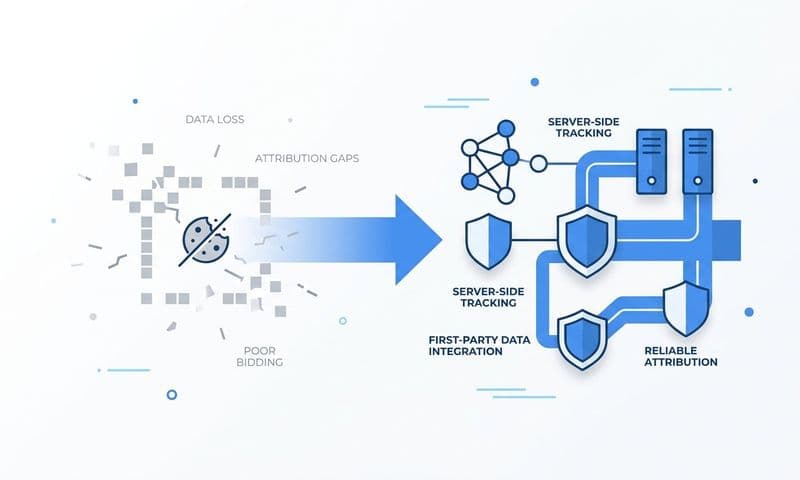
The real fix here is not a tag manager tweak. No amount of trigger reconfiguration will help when the browser itself is blocking the script from loading. The solution is to move to server-side tracking for more accurate attribution.
For Meta: Implement the Conversions API (CAPI). CAPI sends conversion data directly from your server to Meta's servers, completely bypassing the user's browser. Because the request originates from your server rather than the visitor's browser, ad blockers and privacy settings cannot intercept it.
For Google: The equivalent solution is Enhanced Conversions. It works on a similar principle, supplementing browser-based tag data with server-side signals to improve accuracy and resilience against browser restrictions.
Meta's official recommendation is to run both the browser pixel and CAPI simultaneously. The browser pixel captures what it can, and CAPI fills in the gaps. Together, they give you the most complete conversion picture possible. Running both does introduce a deduplication requirement, which is covered in Step 5.
After implementing server-side tracking, monitor your event match quality scores in Meta Events Manager. Improved scores and increased conversion volume compared to your pixel-only baseline are your indicators that server-side tracking is working and recovering previously lost data.
Step 4: Validate Conversion Events Are Firing Correctly
A pixel can be installed, loading without errors, and still fail to record the specific conversion events you actually care about. Installation and event tracking are two separate things. This step is about confirming the latter.
The scenario is common: the base pixel code fires on page load, which is why your browser extension shows a green checkmark. But the specific event you are tracking, such as a Lead event after a demo form submission or a CompleteRegistration event after a trial signup, is not firing at all or is firing at the wrong moment.
Use your ad platform's native testing tools: Meta Events Manager includes a Test Events feature that lets you enter your website URL and monitor incoming events in real time as you interact with the page. Complete a test form submission while watching the panel. You should see the event arrive with the correct name and parameters within seconds. Google's Tag Assistant performs a similar function for Google Ads conversion tags.
Check event parameters: Beyond the event name, confirm that the parameters being passed match what the ad platform expects. For a Lead event in Meta, this typically includes event name, source URL, and optionally a value. For e-commerce or SaaS trial events, currency and value fields may be required for certain optimization goals. If parameters are malformed or missing, the event may be rejected or recorded without the data needed for campaign optimization. Following best practices for tracking conversions accurately helps prevent these issues from the start.
Confirm the event fires at the right moment: For SaaS companies tracking form submissions, the pixel event should fire after a successful form submission, not on page load of the form page itself. If your event fires when the user lands on the form rather than when they complete it, you are recording intent, not conversion. This is a critical distinction that will inflate your reported conversions dramatically.
Single-page application (SPA) frameworks require special attention: If your site is built with React, Vue, Angular, or another SPA framework, traditional page-load triggers do not fire when users navigate between routes. From the browser's perspective, the page never fully reloads. This means your thank-you page may load without ever triggering your pixel's page-view or conversion event.
The fix for SPAs is to use GTM's history change trigger, which fires when the browser's URL changes without a full page reload. Alternatively, your development team can push custom events to the GTM dataLayer at specific moments, such as after a successful API response confirming a form submission, giving you precise control over when conversion events fire.
Your success indicator here is clear: the Test Events tool in your ad platform shows the correct event name and parameters arriving in real time when you complete a test conversion. Once you see that, your event tracking is working as intended.
Step 5: Resolve Data Discrepancies and Deduplication Issues
If you followed the advice in Step 3 and implemented both browser-side pixel tracking and server-side CAPI or Enhanced Conversions, you now have two systems sending conversion data to your ad platform simultaneously. That is the right setup for accuracy and resilience, but it introduces a new problem: both systems may be reporting the same conversion, causing your numbers to be inflated.
Deduplication is how ad platforms handle this. When both your browser pixel and your server send the same conversion event, the platform uses a shared event ID to recognize them as the same event and count it only once. If the event ID is missing or inconsistent between the two sources, the platform has no way to know they are duplicates, and it counts both. Your reported conversions double, your cost-per-acquisition drops artificially, and your campaign data becomes unreliable.
Check your event ID implementation: Every conversion event sent from both the browser pixel and CAPI should include the same unique event ID. This ID is typically a UUID or transaction ID generated at the moment of conversion. The browser pixel passes it as part of the event parameters, and your server-side CAPI call passes the identical ID for the same event. When the ad platform receives both, it matches them on the event ID and deduplicates.
Review your CAPI implementation for consistency: A common failure mode is that the browser pixel sends an event without any event ID while the server sends one with an ID. Because there is no shared identifier, deduplication is impossible. Both events are counted, and your conversion numbers are inflated. Check your pixel event code and your CAPI payload to confirm event IDs are present and matching in both.
Use Meta's deduplication diagnostics: In Meta Events Manager, navigate to your pixel's overview and look at the event health diagnostics. Meta will flag if it is detecting a high rate of duplicate events. If duplicates are showing up, it confirms the event ID is either missing or not matching between your browser and server implementations.
Cross-reference with your CRM: One of the clearest ways to spot inflated conversion counts is to compare your ad platform's reported conversions against the actual number of leads or signups recorded in your CRM for the same time period. If your ad platform is reporting significantly more conversions than your CRM shows new contacts, deduplication is likely failing or your event triggers are firing at the wrong time. Learning how to fix attribution discrepancies in data can help you systematically resolve these mismatches.
Once your event manager shows low or zero duplicate event rates and your conversion counts align reasonably with your CRM data, your deduplication setup is working correctly. Now you are ready for the final and most strategically important step.
Step 6: Connect Pixel Data to Full-Funnel Revenue Attribution
Fixing your pixel is necessary, but it is not sufficient. For B2B SaaS teams, pixel data captures early-funnel signals: form submissions, demo requests, trial signups. These are valuable, but they are not revenue. A pixel-recorded lead that never becomes a qualified opportunity, a closed deal, or a paying customer is not the outcome your business cares about.
This is the gap that most marketing teams live with. They optimize campaigns toward pixel-recorded conversions without knowing whether those conversions are generating actual pipeline and revenue. The result is campaigns that look efficient on paper but fail to drive business outcomes.
Closing this gap requires connecting your ad platform data to your CRM: When a lead comes in through a paid campaign, you need to capture which ad, ad set, and campaign generated that lead and carry that attribution data through the entire sales cycle. When the lead becomes a qualified opportunity and eventually a closed deal, you need to trace that revenue back to the original touchpoint.
Pixel data alone cannot do this. A pixel tells you a conversion event happened. It does not know what happened to that lead afterward. You need a system that ingests data from your ad platforms, your website, and your CRM and stitches them together into a coherent picture of the customer journey. Setting up a proper attribution tracking setup is what bridges the gap between pixel-recorded events and actual revenue outcomes.
This is exactly where a marketing attribution platform like Cometly adds significant value. Cometly connects your ad platforms, CRM, and website tracking into a single source of truth. Instead of looking at pixel-recorded conversions in isolation, you can see which campaigns are generating leads that actually convert to pipeline and closed revenue.
With multi-touch attribution, Cometly maps every touchpoint across the customer journey, from the first ad click through every subsequent interaction to the moment a deal closes. You move beyond last-click pixel data and understand the actual contribution of each campaign and channel to revenue outcomes.
Cometly also integrates with Stripe, which means you can connect your actual revenue data to your ad spend. Instead of optimizing toward proxy metrics like cost-per-lead, you can calculate true ROI at the campaign, ad set, and individual ad level. You know exactly which ads are generating dollars, not just form fills.
The AI-driven recommendations inside Cometly take this further by identifying which ads and campaigns are performing across every channel, so you can scale what is working with confidence rather than intuition. And because Cometly sends enriched, conversion-ready events back to Meta, Google, and other ad platforms, it also improves the quality of data those platforms use for targeting and optimization.
The success indicator for this step is clear: you can trace a closed-won deal back to the specific ad that generated the first touchpoint, with all intermediate touchpoints visible in a single dashboard. That is the level of clarity that lets you make confident budget decisions and prove marketing ROI to leadership.
Your Pixel Tracking Fix Checklist
Pixel tracking failures are fixable, but they require a systematic approach rather than random troubleshooting. Working through each layer in order, from installation to tag manager to browser blockers to event validation to deduplication to full-funnel attribution, gives you the best chance of identifying the actual root cause rather than chasing symptoms.
Before you close this guide, run through this checklist to confirm you have covered every layer:
Pixel ID verified: Browser extension shows the correct pixel ID and a green checkmark on all key pages.
Tag manager container published: The live container version includes your pixel tags, triggers are scoped correctly, and GTM Preview mode confirms the pixel fires on the right events.
Server-side tracking implemented: CAPI for Meta or Enhanced Conversions for Google is live and sending conversion data from your server, bypassing browser restrictions.
Conversion events validated: The Test Events tool confirms the correct event name and parameters are arriving in real time when you complete a test conversion.
Deduplication event IDs in place: Both your browser pixel and server-side implementation pass matching event IDs, and your ad platform's diagnostics show low or zero duplicate event rates.
Attribution platform connected: Your ad data, CRM data, and revenue data are connected in a single attribution platform so pixel-recorded conversions can be traced through to actual pipeline and closed revenue.
If you are ready to move beyond pixel-only tracking and get a complete picture of which ads are driving pipeline and revenue for your B2B SaaS company, Cometly is built exactly for that. It captures every touchpoint, connects ad spend to closed revenue, and gives your team the data it needs to scale with confidence. Get your free demo today and start turning your tracking data into decisions that actually move the needle.