
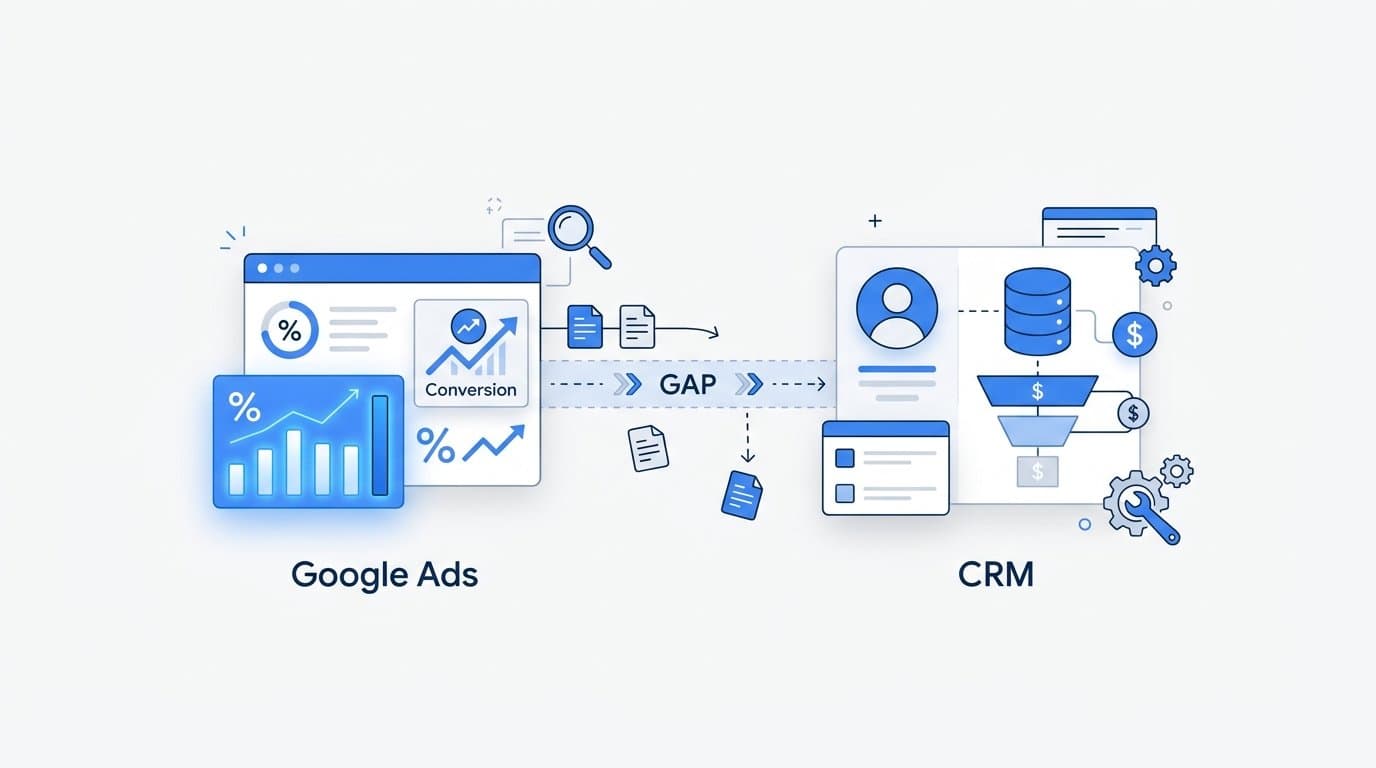
You open Google Ads and see 47 conversions for the month. You open your CRM and count 31 closed deals. The numbers do not match, and now you do not know which one to trust when making budget decisions.
This disconnect is one of the most frustrating problems B2B SaaS marketing teams face. It quietly distorts every decision downstream: which campaigns to scale, which keywords to cut, and how to report ROI to leadership. When your data sources disagree, confidence erodes and budget calls become guesswork.
The gap between Google Ads conversion data and CRM data is rarely caused by one single issue. It is usually a combination of tracking setup problems, attribution window mismatches, duplicate event firing, and the fundamental difference between how Google counts a conversion and how your CRM counts a deal. Each of these causes looks different on the surface, but together they compound into a number that can feel completely untrustworthy.
The good news is that each cause is diagnosable and fixable with a structured approach. This guide walks you through exactly how to audit your tracking setup, identify where the discrepancy originates, align your attribution logic, and build a single source of truth so your Google Ads data and CRM data tell a consistent story.
Whether you are a marketing ops professional, a growth leader, or an agency managing B2B SaaS accounts, this step-by-step process will help you stop guessing and start making confident, data-backed decisions about your paid search investment. Let's get into it.
Step 1: Audit Your Google Ads Conversion Actions
Before you can fix a discrepancy, you need to know exactly what Google Ads is counting. Many teams are surprised to discover they have more conversion actions active than they realized, and some of those actions are double-counting the same event.
Navigate to Google Ads, click Tools, then select Conversions. You will see a full list of every conversion action in your account. Work through this list methodically and note the following for each action.
Include in Conversions vs. Observation Only: Actions set to "Include in conversions" directly affect your reported conversion totals and Smart Bidding signals. Actions set to "Observation only" are tracked but excluded from totals. Confirm that only meaningful, non-overlapping actions are set to "Include."
Duplicate conversion actions: This is one of the most common causes of inflated Google Ads numbers. If you have both a Google tag firing on a thank-you page and an imported Google Analytics 4 goal tracking the same form submission, Google Ads counts both. The result is that a single lead submission registers as two conversions. Check whether any two actions in your list are triggered by the same underlying user event.
Conversion category alignment: Each action should have a category that matches its actual purpose. A form submission should be categorized as "Lead," not "Purchase." Miscategorized actions can affect how Smart Bidding interprets signals and how you report performance by conversion type.
Recent data activity: Look at the "Last 7 days" column for each conversion action. If an action shows zero conversions over a period when you know traffic was active, the tag may be broken or misfiring. This is a signal to investigate tag implementation in the next step.
The goal of this audit is to produce a clean, non-overlapping list where each meaningful user action is tracked exactly once. A common outcome of this step is discovering that reported Google Ads conversions are inflated by 30 to 50 percent simply because of duplicate actions, not because of any actual lead volume difference.
Once you have your clean list, document it. You will reference it throughout the remaining steps to ensure every fix you make is tied to a specific, verified conversion action.
Step 2: Verify Your Tracking Tag Implementation
Knowing which conversion actions exist is only half the picture. The next question is whether those tags are firing correctly. A conversion action can look perfectly configured in the Google Ads interface and still be broken or misfiring in practice.
Start with Google Tag Assistant. This free Chrome-based tool lets you record a session on your website and see exactly which tags fire, when they fire, and whether any errors are detected. Walk through a complete form submission on your site while Tag Assistant is recording, then review the output.
Here is what to look for during your test.
Single fire per submission: Your conversion tag should fire exactly once when a user completes the desired action. If you see the tag fire multiple times during a single session, you have a duplicate firing problem. This often happens when a thank-you page is accessible via browser refresh or back-navigation, causing the tag to re-fire without a new conversion occurring.
Tag placement accuracy: Confirm the conversion tag is placed on a page that users can only reach by completing the desired action. If your tag is on a page that appears mid-funnel in a multi-step form, before the final submission, it will fire prematurely and inflate your conversion count significantly.
Google Tag Manager trigger scoping: If you are using GTM, open the container and inspect the trigger conditions for your conversion tag. The trigger should be scoped to the exact confirmation page URL, not a partial URL match that could catch unintended pages. A trigger set to fire on any page containing "/thank" could fire on a blog post titled "Thanksgiving Promotions" if your URL structure allows it.
Server-side tracking consideration: If your CRM processes form submissions server-side and the thank-you page does not reliably load for every submission, client-side tags will undercount. In this scenario, a user submits a form, the CRM records the lead, but the browser never fully loads the confirmation page, so the tag never fires. This is a structural limitation of client-side tracking that server-side solutions or Conversion API integrations are designed to solve.
After completing your tests, verify the results in Google Ads Tag Diagnostics, found within each conversion action's settings. This view shows recent tag activity and flags any implementation issues detected by Google directly.
A successful outcome here is one confirmed conversion event per verified test submission, with no duplicate or missing fires. Document any issues you find before moving to the next step.
Step 3: Align Attribution Windows and Counting Methods
Even with clean conversion actions and accurate tag firing, your Google Ads numbers and CRM numbers can still diverge because they are measuring time differently. This is one of the most misunderstood causes of the mismatch, and it is especially pronounced in B2B SaaS.
Open each conversion action in Google Ads and check the attribution window settings. The default is typically 30 days for click-through conversions and 1 day for view-through conversions. Now think about your actual sales cycle. If it typically takes 45 to 90 days from a paid search click to a closed deal, a 30-day attribution window will miss a significant portion of the revenue that Google Ads actually influenced.
Extend your click attribution windows to match your average sales cycle length. If your median sales cycle is 60 days, set your window to 60 days. If it runs longer, push it further. Google Ads allows windows up to 90 days for most conversion types.
Beyond windows, understand the time-shift problem. Google Ads attributes a conversion to the date of the original click. Your CRM records the deal on the date it closes or the date the lead was entered. When you compare "Google Ads conversions in June" to "CRM deals in June," you are comparing two different time references for the same events. A click from May that converted in June appears in Google Ads' May data but your CRM's June data.
To do a meaningful comparison, always offset your date ranges to account for your average sales cycle. If your cycle is 45 days, compare Google Ads conversions from a given period to CRM deals created 45 days later. This single adjustment often explains a large portion of the apparent discrepancy.
Conversion counting method: Check whether each conversion action is set to count "Every" conversion or "One" per click period. For lead generation in B2B SaaS, "One" per click period is almost always the correct setting. If a user submits a form twice after clicking the same ad, counting both inflates your leads without adding real pipeline. "Every" is appropriate for e-commerce purchases where multiple transactions from the same click represent genuine revenue.
Attribution model impact: Data-driven attribution distributes fractional credit across multiple touchpoints in the path to conversion, while last-click assigns all credit to the final interaction. These models produce different conversion totals for the same underlying events, which affects how your numbers compare to CRM counts that do not apply any fractional credit logic.
When you apply the correct window, adjust for time-shift, and set counting to "One," the gap between platforms typically narrows considerably. What remains is usually explained by the quality and source tracking issues covered in the next steps.
Step 4: Reconcile Lead Quality and CRM Entry Rules
Here is something that often gets overlooked: not every Google Ads conversion is a real lead. Google Ads counts every event that fires, including spam form submissions, bot traffic, and entries from people who have no intention of buying. Your CRM, on the other hand, likely only contains records that passed some threshold of qualification.
This means part of the gap between platforms is not a tracking problem at all. It is a quality gap. Fixing it requires different actions than fixing a tag implementation issue.
Start by exporting your CRM leads for a specific time period and filtering by source tagged as Google Ads or Paid Search. Compare that count to the Google Ads reported conversions for the same period. The difference between these two numbers has two components: leads that were tracked by Google but never entered the CRM, and leads that were entered but attributed to a different source.
CRM entry gates to investigate: Many CRMs have rules that reduce lead counts before a record is formally created. These include auto-disqualification rules that reject known spam domains, duplicate merging logic that combines multiple submissions from the same email address into one record, and manual entry gates where sales reps only create CRM records for leads they consider worth pursuing.
Each of these rules is legitimate from a sales operations perspective, but they create a structural difference between what Google Ads counts and what the CRM stores. Knowing which rules exist in your system helps you explain the gap rather than chase a phantom tracking error.
A practical recommendation: Create a CRM stage or status called something like "Ad Conversion Received" that logs every form submission immediately upon receipt, before any qualification or disqualification rules apply. This gives you a raw count of inbound submissions from paid search that you can compare directly to Google Ads conversion totals. From there, you can measure the drop-off rate from raw submission to qualified lead, which is a meaningful quality signal in its own right.
Once you can separate tracking discrepancies from quality discrepancies, you know which problems need a technical fix and which need a campaign or targeting adjustment. These are very different solutions, and conflating them leads to wasted effort.
Step 5: Implement UTM Parameters and First-Party Source Tracking
If your CRM records do not contain reliable source data tied back to specific Google Ads campaigns, reconciliation becomes impossible. You cannot match a CRM lead to a Google Ads click without a shared identifier connecting them. UTM parameters and gclid values are that shared identifier.
Start by confirming your Google Ads setup. You should be using either auto-tagging, which appends a gclid parameter to every ad click automatically, or manual UTM parameters. Using both simultaneously can create conflicts where your CRM captures one but not the other, or where values overwrite each other depending on how your landing page handles query strings.
Pick one approach and apply it consistently. For most B2B SaaS teams, auto-tagging with gclid is the recommended path because it enables offline conversion imports later. If you also need UTM data for CRM reporting, you can capture both, but make sure your implementation handles them without conflict.
Verify UTM persistence through your funnel: This is where many teams discover a hidden problem. UTM parameters are present in the initial landing page URL but get stripped somewhere in the conversion funnel. Common culprits include redirects that do not pass query strings, landing page builders that rewrite URLs on form embed load, and single-page application routing that loses parameters on internal navigation.
Use your browser's developer tools or a UTM testing tool to confirm that the gclid and UTM values are still present in the URL at the exact moment the form is submitted. If they are missing at submission, your CRM will not capture them, and you lose the ability to attribute that lead back to its source campaign.
CRM field configuration: Confirm that your CRM is configured to capture and store UTM source, medium, campaign, and gclid values from each lead's first interaction. This usually requires a hidden field on your form that reads the value from the URL and passes it to the CRM on submission. Many CRM platforms have native UTM capture features or integrations that handle this automatically.
The first-party data advantage: When every CRM record created from a Google Ads click contains a stored gclid value, you have the foundation for offline conversion imports. This is the most accurate way to report real revenue back to Google Ads, and it is the subject of the next step.
A successful outcome here is that every CRM lead from a paid search click contains a stored gclid or UTM campaign value that you can trace back to a specific active campaign in Google Ads.
Step 6: Set Up Offline Conversion Imports to Close the Loop
This is where the reconciliation work you have done in the previous five steps pays its most significant dividend. Offline conversion imports allow you to send qualified lead data or closed-won deal data from your CRM back to Google Ads, giving the platform accurate revenue signals instead of relying solely on raw form submissions.
Here is how to set it up.
1. In Google Ads, navigate to Tools, then Conversions, and create a new conversion action. Set the source to "Import from CRM or other data sources." Give it a name that reflects what it represents, such as "Qualified Lead" or "Closed Won Deal."
2. In your CRM, export a file containing the gclid value stored at lead creation, the conversion action name, the conversion timestamp, and optionally the conversion value such as deal size or pipeline value. Google Ads accepts CSV uploads in a specific format, which is documented in the platform's offline conversions guide.
3. Upload this file to Google Ads manually, or automate the sync using the Google Ads API. Automation is strongly recommended for ongoing use because manual CSV exports are easy to forget and prone to error.
Why this matters for Smart Bidding: When Google Ads receives offline conversion signals tied to actual qualified leads or revenue, its Smart Bidding algorithms optimize toward those outcomes rather than raw form fills. For B2B SaaS with high-value, low-volume conversions, this shift in optimization signal can meaningfully improve the quality of traffic your campaigns generate over time.
The 90-day gclid expiration rule: This is a critical operational detail. Google's gclid values expire 90 days after the original click. If your sales cycle is longer than 90 days and you wait until deal close to import conversions, some gclid values will no longer be valid. The solution is to import an earlier-stage conversion, such as "Qualified Lead" or "Opportunity Created," which typically happens within the 90-day window, and then import a second "Closed Won" conversion for deals that close within the window.
Automating the loop with an attribution platform: The manual CSV process works, but it creates operational overhead and introduces lag. Platforms like Cometly automate this entire loop by connecting your ad platforms, CRM, and website to sync enriched conversion events continuously. Instead of exporting files and uploading them on a schedule, the connection runs in real time, ensuring Google Ads always has the most current, accurate conversion data available for optimization.
A successful outcome is Google Ads showing offline conversion data that correlates directly to your CRM pipeline stages, and a reported ROAS that reflects actual deal value rather than form submission volume.
Keeping Your Data Aligned: Building a Single Source of Truth
Working through these six steps once will resolve most of the discrepancy between your Google Ads and CRM data. But tracking drift is real. Tags break, CRM rules change, new campaigns launch without proper UTM configuration, and conversion actions accumulate over time. The fix is not a one-time audit. It is a recurring process.
Set a monthly reconciliation review on your calendar. Each month, run through this checklist: review active conversion actions for duplicates, re-test tag firing on key conversion pages, confirm attribution window alignment with your current average sales cycle, check CRM entry rules for any recent changes, validate UTM persistence through your funnel, and verify that offline conversion imports are running and current.
When all six components are working together, the gap between Google Ads and your CRM shrinks to an explainable, manageable difference rather than a source of constant doubt. You will be able to tell leadership exactly why the numbers differ and what each number represents, which is a very different conversation than "we are not sure which one is right."
For teams who want this process automated and continuously monitored, Cometly connects your ad platforms, CRM, and website into a single attribution layer. It captures every touchpoint from first ad click to CRM event, feeds enriched conversion data back to Google Ads to improve Smart Bidding performance, and surfaces AI-driven recommendations on which campaigns are actually generating pipeline. Instead of reconciling spreadsheets at the end of each month, you get a real-time view of what is driving revenue.
The goal is not just fixing a number mismatch. It is building a data foundation where every budget decision is backed by reliable, connected data. When your Google Ads data and CRM data agree, or when you can explain exactly why they differ, you stop second-guessing your numbers and start scaling with confidence.
Ready to stop reconciling spreadsheets and start seeing accurate attribution automatically? Get your free demo and see how Cometly connects every touchpoint to revenue in real time.