
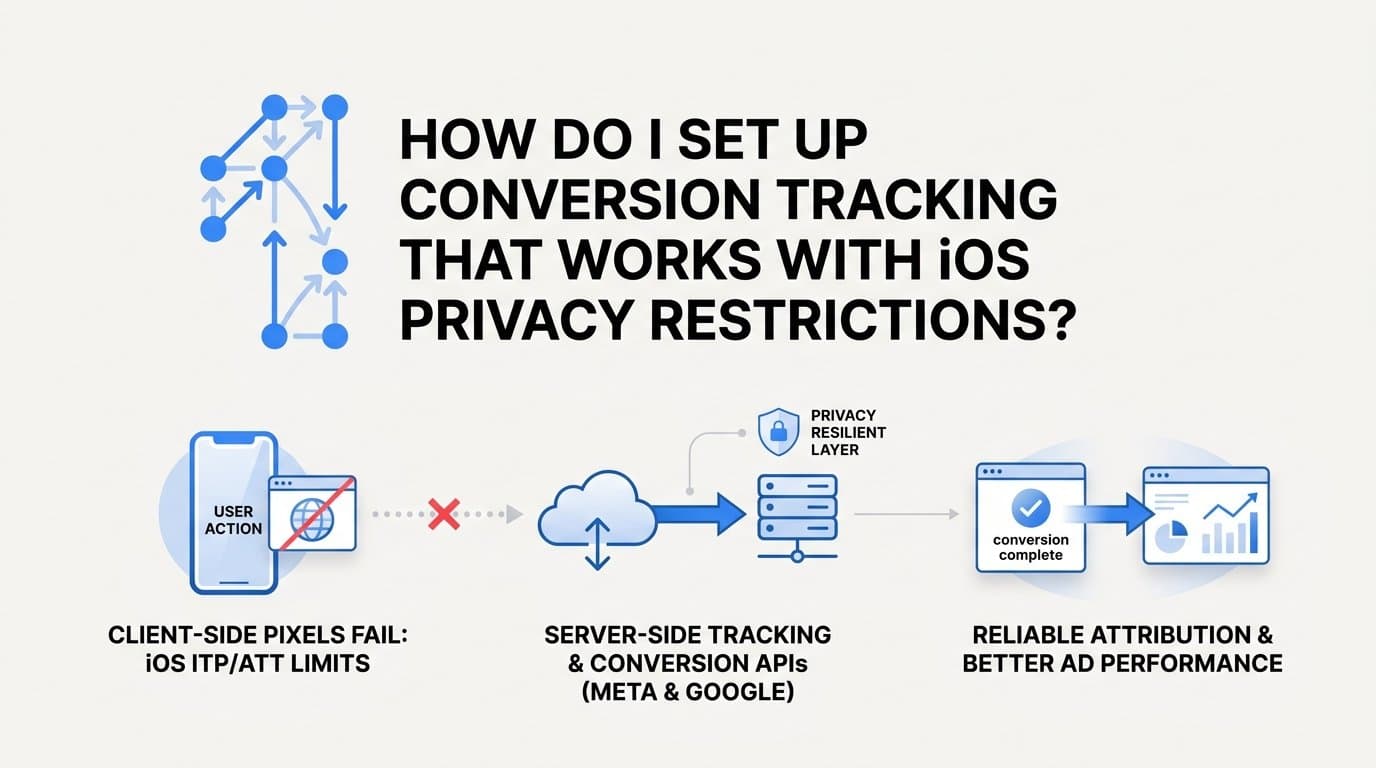
Set up conversion tracking that works with iOS privacy restrictions by moving away from browser-only pixel tracking and adopting server-side event tracking paired with the Conversion API (CAPI) for Meta or Enhanced Conversions for Google. That is the short answer. The longer answer involves understanding exactly why client-side pixels fail under iOS privacy rules and building a layered system that bypasses the browser entirely.
Apple's Intelligent Tracking Prevention (ITP) in Safari can expire first-party cookies set via JavaScript within 24 hours to 7 days, depending on how a user arrived at your site. App Tracking Transparency (ATT), introduced in iOS 14.5, requires explicit user opt-in for cross-app tracking. The result: a significant share of conversions simply never make it back to your ad platform when you rely on pixel-only tracking.
The fix is server-side tracking. Instead of relying on the browser to fire an event after a conversion, your server sends the conversion data directly to Meta or Google, bypassing ITP and cookie restrictions entirely.
For B2B SaaS teams, Cometly is a strong option because it combines server-side tracking with first-party data enrichment and automatically sends conversion-ready events back to Meta and Google. This gives ad platform AI better signals without depending on cookies. Other credible paths include setting up Meta CAPI manually through Events Manager, using Google's Enhanced Conversions tag in Google Tag Manager, or deploying a Customer Data Platform like Segment to route server events.
This guide walks you through each step, from auditing your current tracking gaps to verifying that server events are deduplicating correctly with browser events.
Step 1: Audit Your Current Tracking Gaps
Before you build anything new, you need to understand how much data you are currently losing. This baseline is what you will measure improvement against after implementing server-side tracking.
Start in Meta Events Manager. Open your pixel's event dashboard and compare the browser pixel event volume against your CRM's confirmed conversion count for the same date range. If your CRM shows 100 demo requests but your pixel only reported 60, that 40-event gap is your iOS problem in plain numbers.
Next, check your pixel's match quality score inside Meta Events Manager. Meta displays this score on a scale, and a score below 6 out of 10 is a clear signal that iOS is stripping identifiers before events fire. Low match quality means Meta cannot tie those events back to the right users, which weakens your campaign optimization signals even for the conversions that do get reported.
In Google Analytics 4, navigate to Admin, then Data Collection, and confirm whether Enhanced Measurement is active. Then pull a breakdown of sessions by browser and look at Safari specifically. Abnormally short session durations in Safari compared to Chrome are a diagnostic indicator of ITP cookie expiry cutting sessions short before a conversion fires.
In Google Ads, open your Conversion Actions and look at the conversion source. If all your conversions are attributed to the Google tag (browser-side only), you have no server-side redundancy in place.
What to document: Note which specific conversion events show the largest discrepancy between pixel-reported and CRM-confirmed numbers. Form submissions, demo requests, and trial sign-ups typically show the biggest gaps because they happen later in a session, often after ITP has already cleared the cookies that were set when the user first clicked your ad.
This audit takes less than an hour and gives you a clear picture of where your tracking breaks down. Save these numbers. You will compare against them once your server-side setup is live.
Step 2: Switch to First-Party Data Collection
First-party data is information your server collects directly from users, such as an email address submitted through a form. It is not affected by iOS tracking restrictions because it never touches a third-party cookie. This is the foundation your server-side tracking setup needs to work.
The most important change to make immediately: capture UTM parameters on your server at the moment of form submission, not just in a browser cookie. ITP can delete cookies within 24 hours to 7 days depending on the referral source. If your UTMs only live in a cookie, you lose the ad attribution data for any user who converts after that window closes.
Here is how to implement this correctly:
1. Add hidden fields to every lead form that capture UTM parameters from the URL. When the form loads, use JavaScript to read the current URL parameters and populate those hidden fields. When the form submits, your backend receives the UTM data as part of the form payload, not from a cookie.
2. Store the captured data in your database. Your backend should record the email address, name, UTM source, UTM medium, UTM campaign, and UTM content for every form submission. This becomes your first-party conversion record, independent of any browser state.
3. Hash PII before sending it anywhere. Both Meta and Google accept SHA-256 hashed identifiers for user matching. Hash the email address and phone number on your server before including them in any API call to an ad platform. Never send raw personal data to Meta or Google. SHA-256 hashing is a documented requirement in both platforms' developer documentation, and it is the standard approach for privacy-compliant user matching.
Cometly handles this automatically. When a user submits a form, Cometly captures the first-party identifiers and enriches each conversion event with the original ad click data, so you have a complete customer journey record even when the browser cookie is long gone. For teams building this manually, the hidden field and server-side storage approach described above achieves the same outcome, but requires custom development on your backend.
The key principle here: anything that lives only in a browser cookie is vulnerable to iOS privacy restrictions. Anything your server captures and stores directly is not.
Step 3: Implement the Meta Conversion API (CAPI)
Meta's Conversions API (CAPI) sends conversion events directly from your server to Meta's Graph API, bypassing the browser entirely. This is the primary mechanism for recovering iOS-affected conversions on Meta campaigns.
Here is how to set it up:
1. In Meta Events Manager, go to Data Sources, select your pixel, click "Add Events," and then select "Using the Conversions API." Meta will generate an access token. Copy this token and store it securely on your server. This token authenticates every API call you make.
2. Choose your integration method. You have three options. Direct API integration means your backend sends a POST request to the Meta Graph API endpoint whenever a conversion occurs. A partner integration, such as Cometly, handles the API calls for you without custom development. The Meta CAPI Gateway is a self-hosted option for teams that want full control over data routing. For most B2B SaaS teams, a partner integration is the fastest path to a production-ready setup.
3. For direct integration, structure your API payload carefully. Every CAPI event requires the event name (such as "Lead" or "CompleteRegistration"), the event time in Unix timestamp format, hashed user data (email, phone, first name, last name), and the fbc parameter, which is the Facebook click ID you captured when the user clicked your ad. The fbc value typically comes from the fbclid URL parameter appended to your landing page URL.
4. Set the action_source and event_source_url fields correctly. The action_source field must be set to "website" for web conversions. Missing this field causes Meta to deprioritize the event in its optimization algorithm. The event_source_url should be the exact URL where the conversion occurred.
5. Enable event deduplication. This is critical. Send the same event_id value in both your browser pixel's fbq('track') call and your CAPI server event. Meta uses this ID to identify and merge duplicate events received within a 48-hour window. Without deduplication, running both pixel and CAPI simultaneously will double-count conversions, which corrupts your ROAS calculations and sends misleading signals to Meta's campaign optimization.
Important: Do not turn off your browser pixel when you add CAPI. Run both in parallel. The browser pixel provides real-time signal quality that CAPI alone cannot replicate. The combination of browser pixel plus CAPI with deduplication is the recommended approach from Meta's own documentation, and it is what gives you the most complete and accurate conversion data.
Step 4: Set Up Google Enhanced Conversions
Google's Enhanced Conversions work by hashing user-provided data on the page or server and sending it alongside your standard conversion tag. This allows Google to match conversions even when cookies are blocked or expired, making it the Google equivalent of Meta CAPI for iOS-affected traffic.
Here is the setup process:
1. In Google Ads, go to Tools and Settings, then select Conversions. Open a conversion action, navigate to the Tag Setup tab, and enable "Enhanced conversions for web." You will need to accept Google's customer data policy to proceed.
2. If you use Google Tag Manager, install the Enhanced Conversions variable by mapping your form fields to a dataLayer push that fires on thank-you pages or confirmation events. The dataLayer push should include the user's hashed email address and any other available identifiers. GTM will handle the hashing automatically if you configure the Enhanced Conversions tag correctly.
3. For the more robust server-side option, use Google's Measurement Protocol to send conversion hits directly from your backend. This approach sends the hashed email and a transaction ID from your server to Google, bypassing the browser entirely. This is the equivalent of Meta CAPI and provides the same level of iOS resilience.
4. Verify the setup in Google Ads under Conversion Actions. After your first test conversion, look for "Enhanced conversions" showing a green checkmark and an "Active" status. This typically appears within 24 to 48 hours of the first successful event.
A note on YouTube: YouTube ad conversion tracking benefits directly from this setup because YouTube campaigns run through Google Ads and use the same conversion actions. You do not need a separate configuration for YouTube.
The key difference between Enhanced Conversions and standard Google tag tracking is the user-matching layer. When cookies are missing, Google uses the hashed email to match the conversion to a Google account, recovering attribution that would otherwise be lost to iOS privacy restrictions.
Step 5: Configure Event Deduplication Across All Channels
Deduplication is the process of ensuring that a single real conversion is not counted twice when both a browser pixel and a server event fire for the same user action. It sounds technical, but the concept is straightforward: give every conversion event a unique ID, send that same ID from both the browser and the server, and let the ad platform merge the two into one.
Without deduplication, your conversion counts will inflate after you add server-side tracking. Inflated counts corrupt your ROAS calculations and send misleading signals to ad platform machine learning, causing campaigns to optimize toward phantom conversions.
Here is how to implement deduplication for each platform:
For Meta: Generate a unique event_id for each conversion. This can be a UUID, your CRM's lead ID, or any unique string tied to that specific conversion event. Pass this event_id in both the fbq('track') browser call and the CAPI server payload. Meta automatically deduplicates events with matching IDs received within 48 hours of each other.
For Google: Use the same transaction ID or order ID in both your GTM tag and your Measurement Protocol server hit. Google Ads uses this identifier to recognize and merge duplicate conversion records. For lead-based B2B conversions where there is no order ID, use your CRM's lead record ID as the transaction identifier.
Testing deduplication for Meta: Use the Test Events tool inside Meta Events Manager. Send a test conversion from your browser and then trigger the same event from your server, using the same event_id in both. Events Manager should display one deduplicated event, not two. If you see two separate events, your event_id is not being passed correctly in one of the two sources.
Testing deduplication for Google: Use the Google Tag Assistant or the Google Ads conversion action report to verify that server-side hits are being received and matched correctly against your browser-side tag.
Deduplication testing is not optional. It is one of the most common failure points after CAPI setup, and a missed deduplication issue will silently corrupt your attribution data for weeks before you notice the inflated numbers.
Step 6: Connect Your CRM and Revenue Data for Full Attribution
Server-side tracking captures the conversion event at the top of the funnel. But for B2B SaaS companies, a form submission is not revenue. You need to connect that initial conversion event to pipeline stages and closed-won deals to understand which ad spend is actually driving growth.
This is where most B2B SaaS teams stop short. They implement CAPI, recover their demo request counts, and call it done. The problem is that a recovered lead count still does not tell you which campaigns are generating qualified pipeline or closed revenue. For that, you need CRM integration.
Here is how to connect the dots:
Use webhooks or native CRM integrations to push deal stage changes back to your attribution platform. When a lead becomes an opportunity, that event should be tied back to the original ad click. When a deal closes, the revenue value should be associated with the campaign, ad set, and ad that generated the first touch.
Store the original ad click data with the lead record in your CRM. When your backend captures UTM parameters and the fbclid at form submission (as described in Step 2), write those values into the lead record in your CRM immediately. This creates a permanent link between the ad click and the contact, independent of any browser state or cookie.
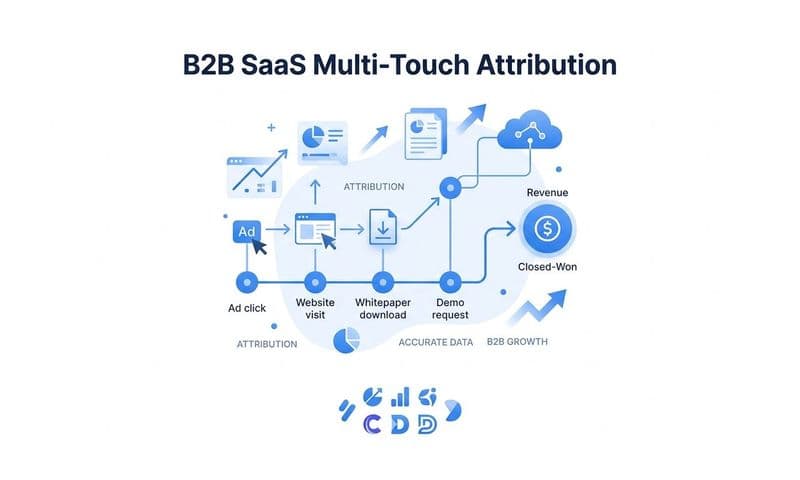
Cometly integrates with Stripe and major CRMs to pull revenue data and match it to the first ad touch, giving you pipeline attribution and revenue attribution in one view. Instead of seeing "100 leads from Campaign A," you see "Campaign A generated $80,000 in closed pipeline over the last 90 days." That is the metric that actually informs scaling decisions.
This step is especially important for B2B SaaS because the average sales cycle means the iOS-affected conversion (a demo request) and the revenue event (a closed deal) can be weeks or months apart. Cookie-based attribution cannot bridge that gap. Server-side tracking with CRM integration can.
With revenue attribution connected, you evaluate ad spend against MRR or ARR generated, not just lead volume. That shift in measurement changes which campaigns you scale, which you cut, and how you allocate budget across channels.
Verify, Monitor, and Maintain Your Setup
Going live is not the finish line. iOS updates and browser privacy changes continue to evolve, and your server-side setup needs ongoing attention to stay accurate.
For the first two weeks after launch, check Meta Events Manager daily. Look for improvements in your event match quality score. Confirm that CAPI events are contributing a meaningful share of total event volume alongside your browser pixel events. If CAPI events are not appearing, recheck your access token and your server's ability to reach the Meta Graph API endpoint.
In Google Ads, compare the Conversions column against your CRM's lead count for the same period. The gap between these two numbers should narrow significantly compared to your pre-implementation baseline from Step 1. If the gap has not improved, revisit your Enhanced Conversions configuration and confirm that hashed emails are being passed correctly.
Set a recurring monthly audit on your calendar. Each time Meta or Google updates their API version, review the changelog for any breaking changes that affect your event payload structure. API version deprecations can silently break server-side tracking if you are not monitoring for them.
Use Cometly's attribution dashboard to compare multi-touch attribution models and see whether the conversion data you are now capturing changes which channels and campaigns appear most valuable. Recovering previously lost conversions often reshuffles attribution credit in ways that affect budget allocation decisions.
Does server-side tracking work for Safari users? Yes. Because server-side tracking sends events directly from your server to the ad platform, it bypasses the browser entirely. Safari's ITP has no effect on server-to-server communication.
Does server-side web tracking work for iOS app conversions? No, not directly. Server-side web tracking covers web conversions in the browser. For in-app events on iOS, you need Apple's SKAdNetwork for app attribution or Meta's Aggregated Event Measurement (AEM) for web conversions affected by ATT. AEM allows up to 8 prioritized conversion events per domain and is a separate configuration from CAPI.
What if your match quality score does not improve after adding CAPI? The most common cause is missing or incorrectly formatted user data in your CAPI payload. Confirm that you are sending hashed email addresses in lowercase before hashing, and that the fbc parameter is being captured correctly from the fbclid URL parameter when users click your Meta ads.
Your Privacy-Resilient Tracking Checklist
Here is a consolidated checklist to confirm you have completed every layer of this setup:
Audit complete: You have documented your pixel-to-CRM conversion gap and your Meta event match quality score as a baseline.
First-party data capture active: Every lead form captures UTM parameters and user identifiers server-side at the moment of submission, stored in your database rather than a cookie.
PII hashing in place: Email addresses and phone numbers are SHA-256 hashed on your server before being sent to Meta or Google.
Meta CAPI connected: You have a valid access token, your server is sending events to the Meta Graph API, and the action_source and event_source_url fields are correctly populated.
Google Enhanced Conversions active: Hashed user data is being sent alongside your standard Google conversion tag, with a green "Active" status confirmed in Google Ads.
Deduplication verified: You have tested that Meta and Google each receive one deduplicated event when both browser and server events fire for the same conversion, using matching event IDs.
CRM and revenue data connected: Deal stage changes and closed-won revenue are flowing back to your attribution platform and tied to the original ad click.
Monthly review scheduled: You have a recurring calendar reminder to audit API version updates, match quality scores, and conversion gap metrics.
Teams that complete all of these steps typically see their tracked conversion volume recover meaningfully compared to pixel-only setups, and they send better signals to ad platform AI for campaign optimization. The quality of data going into Meta and Google's machine learning directly affects how well those platforms target and optimize your campaigns.
Cometly handles steps two through six in a single platform built specifically for B2B SaaS teams. It connects ad spend to pipeline and revenue without requiring custom API development, so you get the full server-side tracking stack without building it from scratch. Get your free demo today and start capturing every touchpoint to maximize your conversions, or review the plans at cometly.com/pricing to find the right fit for your team's scale.