
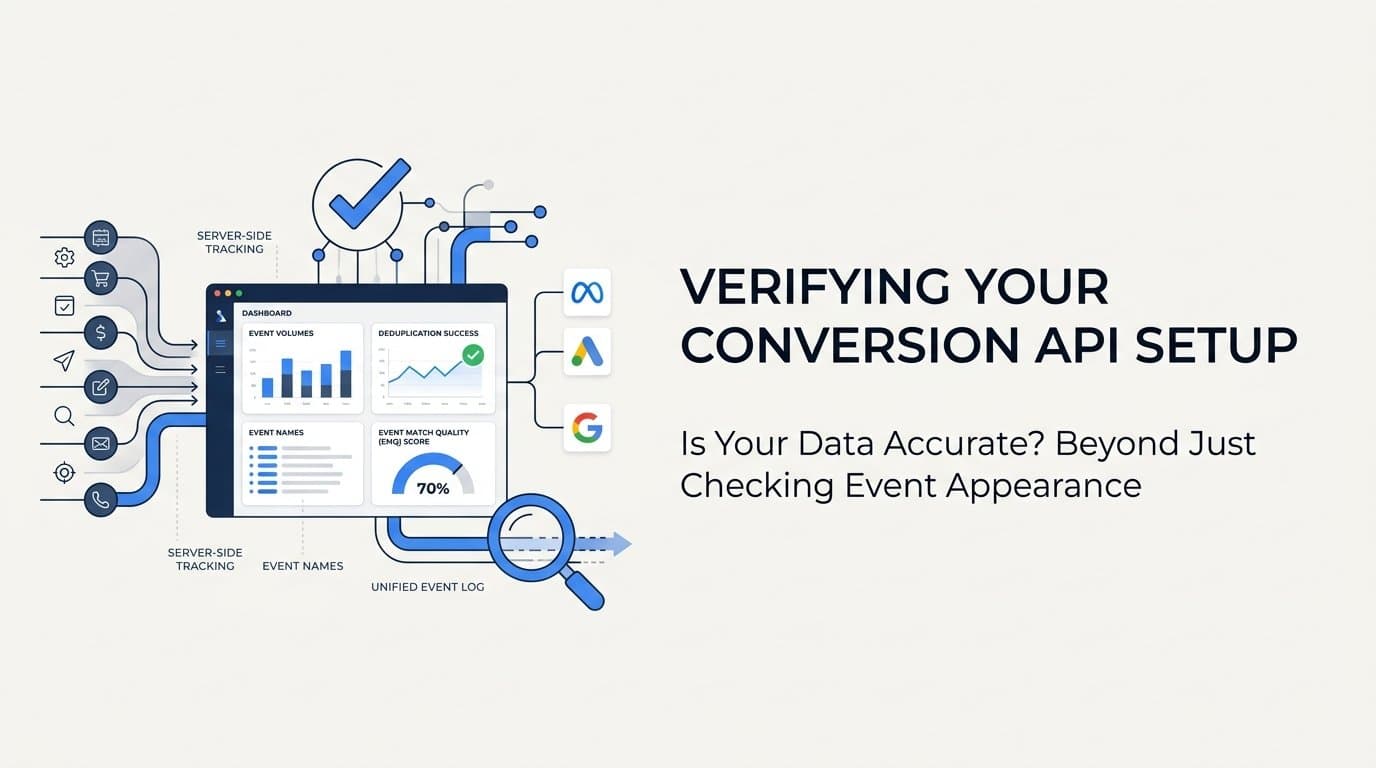
To verify your Conversion API is working correctly, open your ad platform's event manager and confirm that server-side events are appearing with the right names, volumes, and timestamps. If you can see server events arriving in near real-time, deduplication is active, and your Event Match Quality score is strong, your CAPI setup is functioning as intended.
That's the short answer. But in practice, verifying a Conversion API setup involves several distinct checks, and missing even one of them can leave you with blind spots in your attribution data. A CAPI that appears to be "working" can still be silently undercounting conversions, double-counting events, or sending payloads that ad platforms can't match to real users.
Platforms like Cometly make this process significantly easier by providing a unified event log across Meta, Google, and other channels in one dashboard. Instead of jumping between Meta Events Manager, Google Tag Assistant, and your server logs, you get a single view of every server event received, the parameters it carried, and whether it was successfully forwarded to the connected ad platform. For B2B SaaS marketing teams running campaigns across multiple channels, that consolidated visibility is a meaningful time-saver.
This guide walks through six concrete verification steps, covering everything from checking raw event receipt to auditing your API payload for missing parameters. At the end, you'll find answers to the most common questions marketers ask when troubleshooting their CAPI setup.
Step 1: Check Your Ad Platform's Event Manager for Received Events
The first and most fundamental check is confirming that your ad platform is actually receiving server-side events. This sounds obvious, but many teams assume their CAPI is working simply because the integration was set up at some point. Silent failures happen more often than you'd expect.
For Meta, navigate to Events Manager, select your pixel, and open the Overview tab. Look for events labeled with a "Server" source indicator. These are your CAPI events. If you only see "Browser" events, your server-side implementation is either not executing or not reaching Meta's endpoint.
Confirm three things in this view:
Event names match your configuration: You should see the exact event names you defined, such as Purchase, Lead, or CompleteRegistration. If event names are missing or appear with unexpected labels, your server-side code may be sending incorrect event_name values.
Event volume is consistent with expectations: If your site typically generates 50 leads per day, you should see roughly that volume in server events. A sharp drop or zero events is a red flag.
Timestamps show near-real-time delivery: Click into an event and check the timestamp. Server events should arrive within a few minutes of the actual conversion action. If you're seeing delays of several hours, your server-side job queue or batching logic may be misconfigured.
For Google, open your Google Ads account, navigate to Goals and then Conversions, and look for conversion actions with a "Google tag" or "Import" source. The status column will show whether conversions are being recorded. You can also check the Enhanced Conversions section to confirm server-side data is being received.
If you see zero server events in either platform and your browser pixel events are active, the most likely cause is a misconfigured API endpoint, an expired or invalid access token, or server-side code that is not executing on conversion events. These require a code-level review, which the next steps will help you narrow down.
Step 2: Confirm Event Deduplication Is Working
Running both a browser pixel and a server-side Conversion API is best practice because it gives you redundancy and broader coverage. But it also creates a risk: if the same conversion fires from both the browser and the server without proper deduplication, your ad platform counts it twice. That inflates your reported conversions and distorts your optimization signals.
Deduplication works through a shared identifier called event_id. When a conversion happens, your browser pixel fires with a specific event_id value, and your server-side API call sends the same event_id for that same conversion. Meta's system recognizes the duplicate and removes one, keeping only a single conversion record.
To check whether deduplication is active in Meta Events Manager, look at the Events table and find the Deduplicated column. This shows how many events were identified as duplicates and removed. If this column shows zero and you have both pixel and CAPI active, deduplication is not happening.
The most common reasons deduplication fails:
Missing event_id: If either your pixel or your CAPI call omits the event_id parameter entirely, Meta has no way to match them as duplicates.
Mismatched event_id values: If your pixel generates a random ID on page load and your server generates a different random ID independently, the values will never match. The event_id must be generated once and passed to both the browser and the server for the same conversion event.
Formatting differences: If your pixel sends event_id as a number and your server sends it as a string with a different format, Meta may not recognize them as the same value.
To verify this manually, trigger a test conversion and open your browser's developer tools. Look in the Network tab for the Facebook pixel request and find the event_id value it sent. Then check your server logs or API payload for the same event and confirm the event_id matches exactly.
A healthy deduplication setup will show a deduplicated event count greater than zero, and your total attributed conversions should align with your actual conversion volume rather than appearing doubled.
Step 3: Review Your Event Match Quality Score
Technical event delivery is only half the picture. Even if your server events are arriving at Meta's endpoint on time, they may not be attributable to real users if they lack sufficient customer data. This is where Event Match Quality becomes important.
Meta assigns an Event Match Quality (EMQ) score from 0 to 10 to each event type. The score reflects how well the customer information in your event payload matches an actual Facebook user profile. A higher score means more of your server events are being linked to identifiable users, which improves both optimization and attribution accuracy.
A score below 6 is a warning sign. It means a significant portion of your server events are not being matched to users, which limits how effectively Meta can optimize your campaigns toward real conversions.
To check your EMQ score, open Meta Events Manager, click on any event in your event list, and look for the Customer Information Parameters section. This breakdown shows which parameters you are currently sending and which ones are missing.
The parameters that have the most impact on EMQ:
Hashed email (em): The single highest-impact parameter. If a user's email matches their Facebook account email, the event is matched with high confidence.
Hashed phone number (ph): Strong secondary signal, especially for users who registered with their phone number.
First name (fn) and last name (ln): Useful supplementary signals when combined with other parameters.
External ID (external_id): A unique identifier from your own system, such as a CRM contact ID, that helps Meta recognize returning users across sessions.
fbc and fbp values: The Facebook Click ID and Browser ID cookies, which tie server events back to specific ad interactions and browser sessions.
A common mistake is sending only client_ip_address and client_user_agent without any hashed PII. While those parameters help, they are not sufficient on their own to achieve a strong EMQ score. For Google Enhanced Conversions, check the Enhanced Conversions tab in your Google Ads account to see match rates and confirm that hashed email or phone data is being received alongside the gclid.
Target a score of 7 or higher. If you're below that threshold, the fix is almost always adding more hashed customer data parameters to your server-side payload.
Step 4: Use the Test Events Tool to Send a Live Verification
Reviewing historical data in your event manager tells you what happened in the past. The Test Events tool lets you verify what is happening right now, in real time. This is the most direct way to confirm your CAPI setup is functioning end-to-end.
In Meta Events Manager, navigate to your pixel, select the Test Events tab, and copy the test code provided. Add this code to your API request header when making a server-side call. Then trigger a real conversion on your site while keeping the Test Events tab open. Within seconds, you should see the event appear in the interface with its name, parameters, and timestamp.
What to confirm when the test event appears:
Correct event name: The event_name in the received event should match exactly what you configured, with no typos or unexpected variations.
All expected parameters present: Expand the event details and verify that event_source_url, client_ip_address, client_user_agent, hashed customer data, and fbc/fbp values are all included.
Correct timestamp: The event_time should reflect the actual time of the conversion, formatted as a Unix timestamp. An incorrect timestamp format is a common silent failure that causes events to be rejected or misattributed.
For Google, use Google Analytics DebugView or Google Tag Assistant to validate that your server-to-server calls are reaching Google's endpoint with the correct parameters. The Google Ads Conversions API companion app also provides a testing interface for server-side conversion validation.
Cometly users can verify events directly inside the platform's event log, which shows each server event received, the full parameter set it carried, and whether it was successfully forwarded to the connected ad platform. This removes the need to run separate test sessions in each native tool.
If your test event does not appear within 60 seconds of the trigger, the issue is either an authentication error, an incorrect endpoint URL, or a server-side execution problem that is preventing the API call from being made at all.
Step 5: Compare Server Event Volume Against Browser Pixel Volume
Once you've confirmed that individual events are arriving correctly, zoom out and look at volume trends over time. The relationship between your server-side event count and your browser pixel event count tells you a lot about the health of your overall tracking setup.
Pull a 7-day or 30-day report in your ad platform showing total events received, broken down by source. In Meta Events Manager, this breakdown is available in the Overview tab where you can filter by connection method.
Here's how to interpret what you see:
Server events are significantly lower than browser events: This suggests your CAPI implementation has gaps. Common causes include server events only firing for logged-in users (missing anonymous conversions), events only triggering on certain pages rather than all conversion points, or a batching delay that creates timing gaps in your data.
Server events are significantly higher than browser events with no deduplication active: This is an overcounting scenario. Your CAPI may be firing multiple times for the same conversion, or deduplication is not configured correctly. Review Step 2 to resolve this.
Server events are slightly higher than browser events with deduplication active: This is the healthy scenario. Your CAPI is capturing conversions that the browser pixel missed, such as events from users with ad blockers or cookie restrictions, and deduplication is preventing double-counting.
The incremental lift from CAPI over pixel-only tracking varies depending on your audience and the browsers they use. What matters is that the relationship between browser and server event volumes is consistent and explainable.
Cometly's cross-channel analytics dashboard makes this comparison faster by showing event volume across Meta, Google, and other platforms side by side. Rather than pulling separate reports from each native interface and manually reconciling the numbers, you get a unified view that makes discrepancies immediately visible.
Step 6: Audit Your API Payload for Required and Recommended Parameters
The final verification step is a direct inspection of the raw API payload your server is sending. This is where you confirm that all required and recommended parameters are present and formatted correctly, rather than inferring it from what the ad platform reports back.
To inspect your payload, check your server logs if they capture outgoing API requests, or use a tool like Postman to intercept and review the request before it reaches Meta or Google's endpoint. You can also add temporary logging to your server-side code during a test session to capture the full payload for review.
For Meta CAPI, your payload must include:
event_name: The name of the conversion event, exactly as configured in Events Manager.
event_time: The Unix timestamp of when the conversion occurred. This must be in integer format, not a date string.
At least one user data field: Meta requires a minimum of one user data parameter, but a strong setup includes multiple.
Beyond the required fields, these parameters significantly improve attribution quality:
event_source_url: The URL of the page where the conversion occurred. This helps Meta attribute the event to the correct domain and page context.
client_ip_address and client_user_agent: Capture these from the original browser request headers, not from your server's own IP address. Sending your server's IP is a common mistake that reduces match quality.
fbc (Facebook Click ID): The value stored in the _fbc cookie on the user's browser. This is the most important parameter for tying a server event back to a specific ad click. Missing fbc is one of the most common causes of poor attribution in Meta CAPI setups.
fbp (Facebook Browser ID): The value stored in the _fbp cookie, which helps identify returning users across sessions.
Hashed customer data: Email, phone, first name, last name, city, zip, and country, all hashed using SHA-256 before sending. Never send plain-text PII in your API payload.
For Google Enhanced Conversions, your payload must include a hashed email or phone number tied to the gclid from the user's Google Ads click. Missing the gclid means Google cannot connect the server-side conversion back to a specific ad interaction.
A payload that includes all of the above for every conversion event is a strong indicator that your CAPI setup is functioning at a high level, both technically and from an attribution quality standpoint.
Related Questions About Conversion API Verification
How do I know if my Meta Conversion API is sending duplicate events?
Check the Deduplicated column in Meta Events Manager. If it shows zero deduplicated events but both your pixel and CAPI are active, your event_id values are not matching between the browser and server calls. Review how your event_id is generated and ensure the same value is passed to both the pixel and the API for each conversion.
What is a good Event Match Quality score for Meta CAPI?
A score of 7 or higher is considered strong. Scores below 6 indicate that your server events are missing customer data parameters, which reduces how many events can be matched to Facebook user profiles. Adding hashed email, phone, and external_id to your payload is the most effective way to raise a low EMQ score.
How long does it take for Conversion API events to appear in Meta Events Manager?
Server events typically appear within a few minutes of being sent. If events do not appear within 15 minutes of a test trigger, there is likely a configuration error, an invalid access token, or a network issue preventing the API call from reaching Meta's endpoint. Use the Test Events tool to isolate whether the problem is on the sending side or the receiving side.
Can I verify my Conversion API without a developer?
Yes. Platforms like Cometly provide no-code CAPI setup and built-in event verification dashboards, so marketers can confirm events are firing correctly, review parameter completeness, and identify gaps without reading or writing server-side code. This is particularly useful for B2B SaaS marketing teams who need to move quickly without waiting on engineering resources.
Does Google have a Conversion API equivalent to Meta CAPI?
Yes. Google offers the Google Ads Conversions API and Enhanced Conversions for Web, both of which send conversion data server-to-server rather than relying solely on browser-based tags. You can verify these integrations through Google Tag Assistant and the Google Ads conversion dashboard, which shows match rates and whether user-provided data is being received correctly.
Putting It All Together
A functioning Conversion API setup requires two things to be true simultaneously: technical accuracy and attribution accuracy. Events need to fire, arrive at the platform, and carry the right parameters. And those events need to be matched to real users, deduplicated correctly, and tied back to specific ad interactions.
Here's a quick verification checklist to run through:
1. Server events are visible in your ad platform's event manager with the correct names and consistent volume.
2. Deduplication is active, with a non-zero deduplicated event count and no double-counting of conversions.
3. Event Match Quality score is 7 or above, with hashed customer data parameters present in every event.
4. Test Events tool confirmed a live server event arriving within 60 seconds with all expected parameters.
5. Server event volume compared against browser pixel volume, with the relationship consistent and explainable.
6. Raw API payload audited to confirm event_name, event_time, event_source_url, client_ip_address, client_user_agent, fbc, fbp, and hashed customer data are all present.
This is not a one-time task. Any site update, CRM migration, or new ad platform integration can silently break a previously working CAPI setup. Build a habit of running through these checks after major changes, and consider setting up ongoing monitoring so you catch issues before they affect your campaign data.
For teams who want a faster path to verified server-side tracking without manually checking each native platform, Cometly consolidates all of this into one interface. You get a unified event log across Meta, Google, and other channels, real-time visibility into parameter completeness, and cross-channel volume comparisons that make discrepancies easy to spot. Get your free demo and start capturing every touchpoint with confidence.