

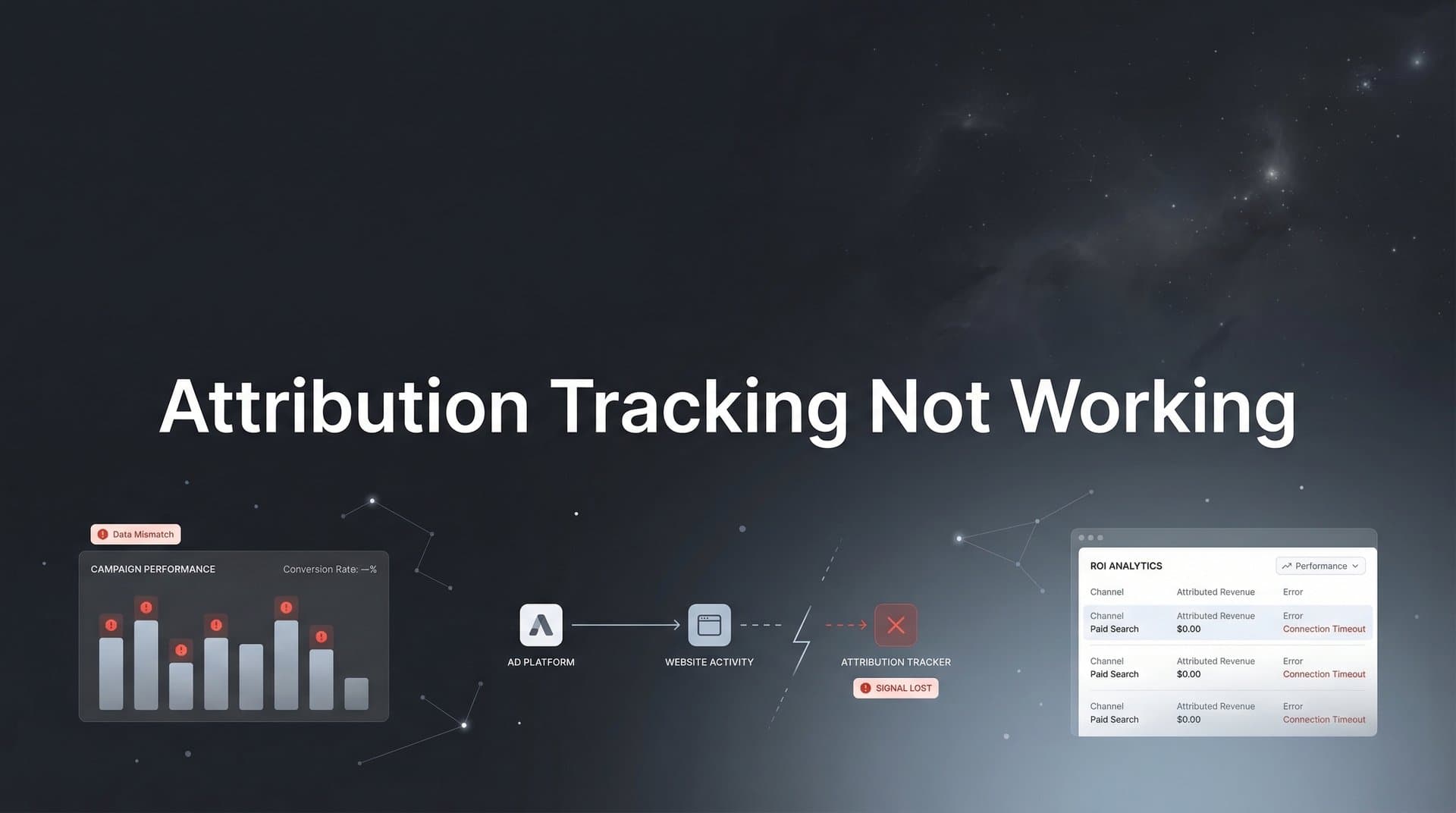
You check your attribution dashboard and something's wrong. The conversion numbers don't match what you're seeing in your CRM. Your Facebook Ads Manager shows 50 conversions, but your attribution platform only captured 30. Google Analytics reports completely different numbers. Suddenly, every optimization decision feels like a shot in the dark.
When attribution tracking breaks, you're not just losing data—you're losing the ability to make confident marketing decisions. That campaign you thought was profitable? Maybe it's actually bleeding money. The channel you were about to cut? It might be your best performer.
Here's the good news: most attribution tracking failures stem from a handful of fixable issues. Browser privacy settings blocking your pixels. UTM parameters getting stripped during redirects. API connections that expired without warning. Conversion events firing at the wrong moment.
This guide walks you through a systematic troubleshooting process that addresses the most common culprits. We'll start with the basics—verifying your tracking pixels actually fire—and progress through increasingly technical checks until we identify exactly where your attribution data is breaking down. By the end, you'll know precisely what's failing and how to fix it.
Let's diagnose the problem.
Step 1: Verify Your Tracking Pixels Are Firing Correctly
Before diving into complex troubleshooting, confirm the fundamentals: are your tracking pixels actually loading and executing? This is the foundation of all attribution tracking, and it's where many issues start.
Open your website in Chrome and press F12 to access Developer Tools. Navigate to the Network tab, then reload your landing page. In the filter box, search for terms like "pixel", "facebook", "gtag", or your attribution platform's domain name. You should see HTTP requests firing to these tracking endpoints. If they're missing entirely, your pixels aren't loading.
Next, use platform-specific debugging tools. Install the Facebook Pixel Helper extension for Chrome—it displays a small icon in your browser bar that shows which Facebook pixels fired on the current page. Click through to a conversion page and verify the pixel fires there too. For Google Ads, use Google Tag Assistant. These tools not only confirm pixels are present but also reveal configuration errors.
Pay close attention to the Console tab in Developer Tools. JavaScript errors appear here in red text. A single error earlier in your page's code can prevent subsequent scripts from executing, including your tracking pixels. Common culprits include broken third-party widgets, outdated jQuery libraries, or conflicts between marketing tools.
Test the complete conversion flow, not just your homepage. Load your landing page, fill out a form or complete a purchase, and verify pixels fire on the thank-you page. Many marketers correctly install pixels on their main pages but forget conversion confirmation pages—where the most critical events need to fire. If you're experiencing issues specifically with tracking pixels not firing correctly, there are additional diagnostic steps you can take.
If you're using Google Tag Manager or another tag management system, open its preview mode and walk through your conversion path. GTM's preview pane shows exactly which tags fired, which didn't, and why. Look for tags that show "Not Fired" status. Click into them to see the trigger conditions. Often, a tag is configured to fire only when specific conditions are met—conditions that aren't actually occurring on your pages.
The most frequent pixel issues trace back to tag manager misconfigurations. You set up a trigger based on a CSS class that doesn't exist. You configured a tag to fire on form submission, but the form uses AJAX and doesn't trigger a traditional submit event. You added conditional logic that seemed right but never actually evaluates to true in real user sessions.
If pixels aren't firing at all, the fix is straightforward: correct your tag manager configuration, fix JavaScript errors, or properly implement the pixel code. But if pixels fire correctly and you still see attribution gaps, the problem lies elsewhere in your tracking infrastructure.
Step 2: Check for Browser and Privacy Blockers Interfering
Your pixels might be firing perfectly—but never reaching their destination. Browser privacy features and ad blockers create an invisible wall between your tracking attempts and the platforms that need that data.
Start with a simple test: open an incognito or private browsing window, disable all browser extensions, and complete a test conversion. Compare this to your normal browsing session. If the incognito conversion tracks correctly but your regular browser session doesn't, browser extensions are the culprit. Ad blockers like uBlock Origin, Privacy Badger, and even mainstream extensions like Ghostery actively prevent tracking pixels from communicating with ad platforms.
The challenge? A significant portion of your actual users run these blockers. You can't ask customers to disable their privacy tools just to improve your tracking. This is where many marketers realize client-side tracking has fundamental limitations.
Safari's Intelligent Tracking Prevention (ITP) represents a more systematic problem. Apple built tracking prevention directly into the browser, limiting cookie lifespans and blocking third-party tracking scripts. When a user clicks your ad on their iPhone, Safari may only preserve that attribution data for 24 hours. If they convert three days later, the connection between ad click and conversion is lost—even though your pixel fired correctly. Understanding why cookie tracking not working anymore affects so many marketers is essential for adapting your strategy.
iOS 14.5 and later versions introduced App Tracking Transparency, requiring apps to ask permission before tracking users across other apps and websites. Most users decline. For mobile app attribution tracking and mobile web tracking, this creates massive blind spots. You're not seeing pixel failures in your debugging tools because the pixels work fine—they're just prevented from collecting the data that matters.
Firefox Enhanced Tracking Protection and Brave's built-in shields add to the complexity. Each browser implements privacy features differently, creating a fragmented landscape where the same tracking setup works perfectly in Chrome but fails in Safari, works on desktop but breaks on mobile.
Test your attribution tracking across multiple browsers and devices. Create a test conversion in Chrome, then Safari, then Firefox. Try both desktop and mobile. If you see consistent tracking in Chrome but gaps in Safari or mobile browsers, privacy features are blocking your attribution data.
The uncomfortable truth: you can't fix browser-level privacy blocking with better pixel implementation. Client-side tracking has inherent limitations in the current privacy landscape. When browsers or users block tracking scripts, those conversions simply won't appear in platforms that rely solely on pixel-based attribution. This is where cookieless attribution tracking becomes essential—it bypasses the browser entirely by sending conversion data directly from your server to ad platforms.
Step 3: Audit Your UTM Parameters and URL Structure
Your pixels fire correctly. Browsers aren't blocking them. But your attribution platform still can't connect conversions back to the right campaigns. The problem might be your UTM parameters—the campaign tracking data attached to your URLs.
UTM parameters are the query strings you add to URLs: utm_source, utm_medium, utm_campaign, utm_content, and utm_term. When someone clicks your ad, these parameters tell your attribution platform which campaign drove the visit. But UTM data is fragile—it can disappear during the user's journey, breaking the attribution chain.
Check if your landing pages use redirects. Open your ad, copy the destination URL, and paste it into a redirect checker tool. If you see multiple redirects before reaching the final page, each redirect is an opportunity for UTM parameters to get stripped. This happens frequently with link shorteners, marketing automation platforms, and even some CMS configurations that "clean" URLs by removing query parameters.
Test the full click-to-conversion path manually. Click one of your ads, watch the URL bar as the page loads, and confirm the UTM parameters persist. Then navigate through your site toward a conversion—add a product to cart, start checkout, land on the thank-you page. Do the UTM parameters stay in the URL throughout? If they disappear at any step, your attribution platform can't connect the final conversion back to the original ad click. When UTM parameters not working properly, it creates significant gaps in your attribution data.
Look for duplicate or conflicting UTM parameters in your URLs. Sometimes marketers layer tracking on top of existing tracking, creating URLs like: example.com?utm_source=facebook&utm_source=google. When the same parameter appears twice with different values, attribution platforms don't know which to trust. The result: dropped conversions or incorrect attribution.
Verify your attribution platform is actually capturing UTM data. Most platforms show the UTM parameters they've collected for each session. Log into your attribution dashboard and check recent conversions. Do they show the utm_source, utm_medium, and utm_campaign you expect? If these fields are blank or show "direct" when you know they came from a paid ad, your platform isn't capturing the data—even if it's present in the URL.
Some attribution platforms require specific configuration to read UTM parameters. You might need to enable a setting, add custom JavaScript to parse the parameters, or configure your tag manager to push UTM data into a data layer. Check your platform's documentation for UTM tracking requirements.
The most insidious UTM issue: parameters that work 90% of the time but randomly fail. This often happens with single-page applications or sites that use AJAX navigation. The initial page load captures UTMs correctly, but when users navigate without triggering a full page reload, the UTM data doesn't persist to the next virtual page view. Your attribution platform sees the conversion but can't connect it to the campaign.
If you discover UTM parameters are being stripped or not captured, the fix depends on the cause. For redirect issues, modify your redirect rules to preserve query parameters. For single-page apps, implement UTM persistence in your JavaScript. For attribution platform configuration, follow the setup documentation to ensure UTM data flows correctly into your tracking system.
Step 4: Validate Your Conversion Events and Data Layer
Your pixels fire. UTM parameters persist. But conversions still aren't showing up correctly. The issue might be timing—your conversion events are firing at the wrong moment, or they're not sending the data your attribution platform needs.
Conversion events must fire at the precise moment a conversion occurs, not before and not after. If you're tracking form submissions, the event should fire when the form is successfully submitted—not when someone clicks the submit button, and not when the thank-you page loads seconds later. This distinction matters because users can click submit, see a validation error, and never actually complete the conversion.
Use your browser's Developer Tools to watch when events fire. In the Network tab, filter for your attribution platform's domain and watch the timeline. Complete a test conversion and note exactly when the conversion event appears. Does it fire before the form submits? That's too early—you're counting attempts, not completions. Does it fire several seconds after the thank-you page loads? That's too late—users who close the tab quickly won't be tracked.
Check the event parameters your conversion events send. Most attribution platforms require specific data fields: conversion value, order ID, product details, or lead information. Open the Network tab, find a conversion event request, and examine the payload. Are all required fields present? Are they sending actual data or placeholder values?
Your data layer plays a critical role here. The data layer is a JavaScript object that stores information for your tag manager to access. When a conversion happens, your website should push conversion details into the data layer—then your tag manager reads that data and includes it in the conversion event. If the data layer doesn't contain the right information, or if it updates after the event fires, your attribution platform receives incomplete data.
Test with real conversions, not just page loads. Many marketers verify their setup by loading the thank-you page directly. The pixel fires, the event appears in the platform's test mode, and everything looks good. But real conversions follow a different path—they involve form submissions, payment processing, and server-side logic that can affect when and how events fire. Always test the complete conversion flow as a real user would experience it.
Watch for asynchronous loading issues. Modern websites load content dynamically, and your tracking code might execute before the conversion data is available. This creates a race condition: your pixel tries to fire a conversion event, but the order total or transaction ID hasn't loaded yet, so the event sends with empty values. The solution usually involves adding callbacks or promises that wait for data to be available before firing the event.
Thank-you page delays cause similar problems. If your thank-you page loads slowly, users might close the tab before the conversion pixel fires. Or the page might redirect immediately to another destination, interrupting pixel execution. These scenarios create phantom conversions—they happened, but your attribution platform never recorded them.
If you identify timing or data issues, work with your developer to adjust when events fire and what data they include. Ensure conversion events wait for all necessary data to be available. Verify thank-you pages remain visible long enough for pixels to complete. Confirm the data layer contains accurate conversion information before tags attempt to read it.
Step 5: Review Platform Integrations and API Connections
Sometimes the problem isn't on your website at all—it's in the connections between your attribution platform and the advertising or CRM systems it integrates with. These integrations rely on API tokens, OAuth credentials, and webhook endpoints that can expire or break without warning.
Start by checking your integration status. Log into your attribution platform and navigate to the integrations or connections section. Look for any integrations showing error states, warning icons, or "disconnected" status. Even if they appear connected, check when they were last authenticated. API tokens often expire after 30, 60, or 90 days, requiring re-authentication.
For each advertising platform integration—Facebook Ads, Google Ads, TikTok, LinkedIn—verify the connection is active and pulling data. Most platforms show the last successful sync time. If you see "Last synced: 7 days ago" and you've run campaigns since then, the integration has stopped working. Recent data isn't flowing through. When paid ad tracking not working, broken integrations are often the culprit.
API permissions change frequently. Facebook might update their API requirements, requiring additional permissions you didn't grant during initial setup. Google might deprecate an old API version your attribution platform was using. When this happens, integrations that worked perfectly for months suddenly stop syncing data. Re-authenticating the connection usually grants the new required permissions.
Check webhook endpoints if your attribution platform uses them to receive conversion data from your CRM or e-commerce platform. Webhooks are URLs that other systems send data to when events occur. If the webhook endpoint goes down, times out, or returns errors, conversions stop flowing. Look for webhook logs or delivery reports that show whether incoming conversion notifications are succeeding or failing.
CRM integrations deserve special attention. If you're sending conversion data from Salesforce, HubSpot, or another CRM to your attribution platform, verify the integration shows active status and recent sync activity. Many CRM integrations use scheduled syncs—checking for new data every hour or every few hours. If the sync fails repeatedly, you'll see a growing gap between conversions in your CRM and conversions in your attribution platform. For HubSpot users specifically, understanding HubSpot attribution tracking configuration can prevent many common issues.
Error logs reveal the specific problems. Most attribution platforms maintain integration error logs that show failed API calls, rejected webhooks, or authentication failures. These logs often contain the exact error message from the external platform, telling you precisely what went wrong: "Invalid access token", "Missing required permission: ads_read", "Rate limit exceeded".
Re-authenticate connections that show any signs of failure. Even if an integration appears connected, disconnecting and reconnecting it forces a fresh authentication flow, grants updated permissions, and often resolves mysterious sync issues. This takes five minutes and fixes a surprising number of integration problems.
If you discover expired credentials or broken API connections, the fix is usually straightforward: re-authenticate the integration. Follow your attribution platform's instructions to disconnect and reconnect each affected platform. Grant all requested permissions during the authentication flow. Verify the integration shows "connected" status and begins syncing recent data.
Step 6: Implement Server-Side Tracking as a Backup
You've checked everything. Pixels fire correctly. UTM parameters persist. Conversion events send complete data. Integrations are connected. Yet you still see attribution gaps—conversions happening that never appear in your tracking. This is where server-side tracking becomes essential.
Client-side tracking—pixels that execute in the user's browser—has fundamental limitations. Browsers block them. Users disable them. Privacy features limit them. Server-side tracking bypasses all of this by sending conversion data directly from your server to advertising platforms, completely independent of the user's browser.
When a conversion happens on your website, your server knows about it. You process the payment, create the database record, send the confirmation email. At that moment, your server can also send a conversion event to Facebook's Conversions API, Google's offline conversion import, or your attribution platform's server-side endpoint. The user's browser never enters the equation.
This captures conversions that client-side tracking misses. The user who completed checkout with an ad blocker enabled? Server-side tracking captures it. The iOS user whose Safari browser limited cookie lifespan? Server-side tracking captures it. The customer who closed the tab before the thank-you page fully loaded? Server-side tracking already sent the conversion from your server.
Facebook's Conversions API is the most common server-side implementation for Meta advertising. Instead of relying solely on the Facebook Pixel, you send conversion events directly from your server to Facebook's API. This requires development work—your server needs code that constructs API requests with conversion data and sends them to Facebook's endpoint. But the result is significantly more complete attribution data. For detailed guidance on Meta's ecosystem, explore Facebook attribution tracking best practices.
Google Ads offers offline conversion imports, allowing you to upload conversions that happened outside the browser. You can send conversion data via API or upload CSV files. This is particularly valuable for phone call conversions, in-store purchases, or any conversion that doesn't happen directly on your website.
The key to server-side tracking is event matching. When you send a conversion event from your server, you need to include enough information for the ad platform to match it to the original ad click. This typically means sending hashed email addresses, phone numbers, or platform-specific click IDs. Without proper event matching, the ad platform receives your conversion data but can't attribute it to specific campaigns.
Modern attribution platforms like Cometly handle server-side tracking automatically. Rather than building custom integrations with each ad platform's API, you send conversion data to Cometly's server-side endpoint, and Cometly distributes it to all connected platforms. This simplifies implementation and ensures consistent data across all your advertising channels.
Server-side tracking also addresses the deduplication challenge. When you implement both client-side pixels and server-side tracking, you need to prevent double-counting conversions that both systems capture. Cometly's approach combines both tracking methods and automatically deduplicates events, giving you the most complete picture: conversions captured by pixels, conversions captured by server-side tracking, and the intelligence to recognize when they're the same conversion reported through different channels.
If you're experiencing persistent attribution gaps even after troubleshooting all client-side tracking, server-side implementation is the solution. Work with your development team to implement Conversions API for Meta, offline conversions for Google, or integrate with an attribution platform that handles server-side tracking infrastructure for you.
Putting It All Together: Your Attribution Troubleshooting Checklist
Most attribution tracking failures fall into one of six categories. When data stops flowing or shows inconsistencies, work through this systematic checklist:
Pixels: Open Developer Tools and verify tracking pixels fire on landing pages and conversion pages. Use platform-specific helpers like Facebook Pixel Helper. Check for JavaScript errors that might block execution. If you notice your pixel tracking stopped working, start your diagnosis here.
Privacy Blocking: Test conversions in incognito mode without extensions. Try multiple browsers including Safari and mobile devices. Recognize that client-side tracking has inherent limitations in the current privacy landscape. These represent some of the most significant attribution tracking challenges marketers face today.
UTM Parameters: Confirm UTM parameters aren't stripped by redirects or lost during navigation. Verify your attribution platform actually captures and displays UTM data for recent conversions.
Conversion Events: Validate that conversion events fire at the right moment with complete data. Check your data layer contains accurate information. Test with real conversions, not just page loads.
Platform Integrations: Review integration status for all connected ad platforms and CRMs. Look for expired API tokens or authentication failures. Re-authenticate connections showing any issues. For managing ads across multiple platforms, cross platform attribution tracking requires special attention to integration health.
Server-Side Tracking: Implement server-side conversion tracking to capture data that client-side pixels miss. This addresses browser blocking, privacy limitations, and timing issues that affect pixel-based attribution.
If you've worked through all six steps and still see significant attribution gaps, the issue likely requires more robust infrastructure. Traditional pixel-based tracking simply can't capture every conversion in today's privacy-focused environment. Browser limitations, user preferences, and technical constraints create blind spots that troubleshooting alone can't fix. Learning how to fix attribution discrepancies in data often requires implementing multiple tracking methods simultaneously.
This is where modern attribution platforms make the difference. Cometly combines server-side tracking with multi-touch attribution to capture conversions across the entire customer journey—from first ad click through CRM events. The platform tracks every touchpoint, feeds enriched conversion data back to ad platforms to improve their algorithms, and uses AI to identify which campaigns actually drive revenue.
Accurate attribution data transforms how you optimize campaigns. Instead of guessing which ads work, you see exactly which touchpoints contribute to conversions. Instead of scaling campaigns based on incomplete data, you make decisions with confidence. Instead of losing conversions to browser blocking, you capture the complete picture.
Ready to elevate your marketing game with precision and confidence? Discover how Cometly's AI-driven recommendations can transform your ad strategy—Get your free demo today and start capturing every touchpoint to maximize your conversions.



