
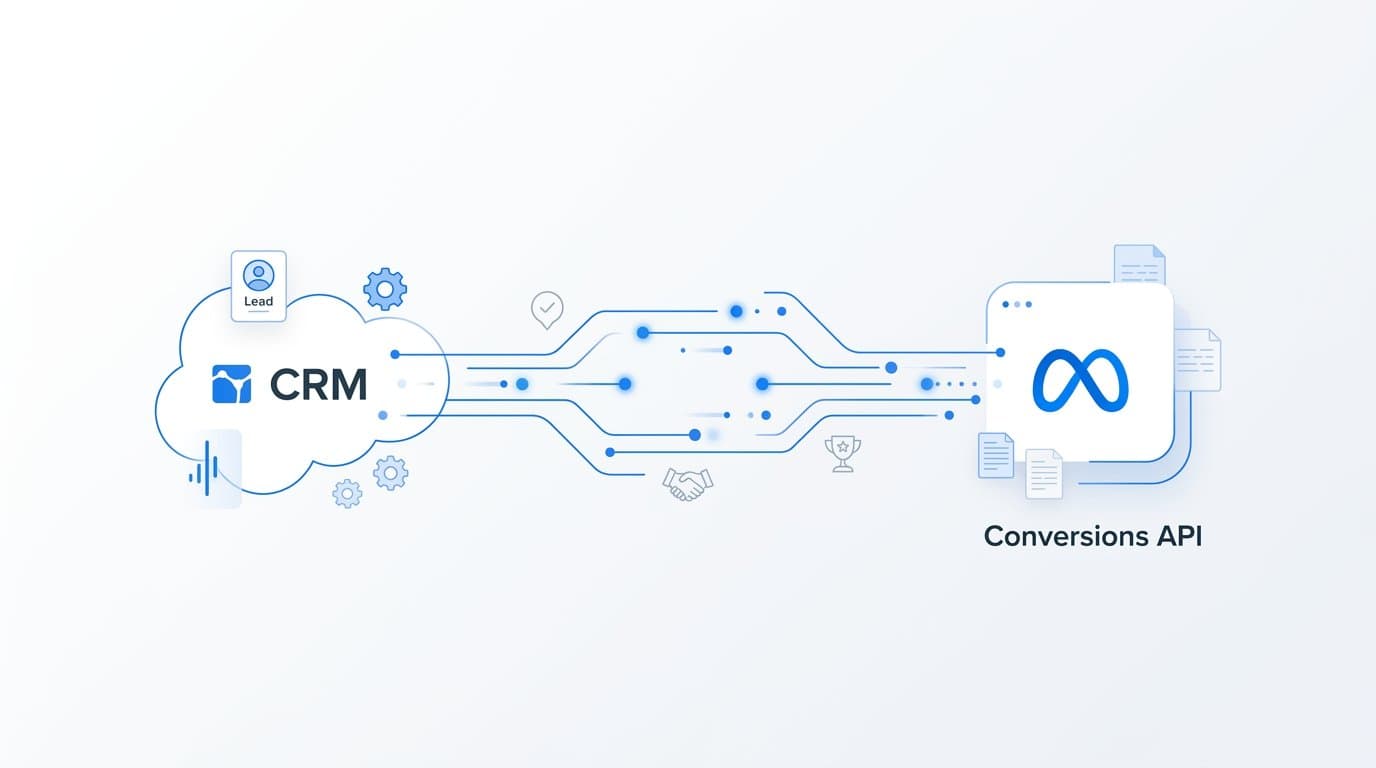
To send CRM events back to Meta through server-side tracking, you connect your CRM to Meta's Conversions API (CAPI), which transmits event data directly from your server rather than relying on a browser pixel. This approach captures downstream CRM events like qualified leads, opportunities, and closed-won deals that the Meta pixel never sees.
Here is why this matters for B2B SaaS teams specifically. Without server-side CRM event tracking, Meta only sees top-of-funnel activity. It bids to acquire leads, not customers. That inflates cost-per-lead while hiding the channels that actually close revenue. Your campaigns optimize toward form fills, and your sales team inherits a pipeline full of leads that never convert.
Sending CRM events server-side solves three problems at once. It restores conversion signal lost to ad blockers and iOS privacy restrictions. It lets you pass high-quality lead scores and deal values that Meta cannot collect on its own. And it closes the loop between ad spend and real business outcomes.
Platforms like Cometly are built specifically for this workflow. Cometly connects your ad platforms, CRM, and website into a single attribution layer, then relays enriched conversion events back to Meta via server-side integration automatically. This means Meta's algorithm can optimize toward revenue rather than raw lead volume, without your team writing or maintaining custom code.
This guide walks through every step required to set up server-side CRM-to-Meta event sending, from generating your CAPI access token to verifying event match quality in Events Manager. Whether you use a dedicated attribution platform like Cometly or build a direct integration, the core steps are the same.
Step 1: Generate Your Meta Conversions API Access Token
Before any CRM event can reach Meta's servers, you need two things: a Pixel ID and a Conversions API access token. These credentials authenticate every server-side event you send, and without them, nothing works.
Start by navigating to Meta Events Manager. Select the pixel associated with the ad account you want to send CRM events to. Once inside the pixel dashboard, open the Settings tab and scroll down until you find the Conversions API section. You will see an option to generate an access token directly from this interface.
Click "Generate access token" and copy the token string immediately. Store it in a secure location such as a password manager or your team's secrets vault. This token is the key that authenticates your server-side calls, so treat it with the same care as a production API key.
While you are in Settings, note your Pixel ID. It appears at the top of the Settings page and in the URL of Events Manager. Both the Pixel ID and the access token are required in every API call you make to the CAPI endpoint.
Important security consideration: Rather than generating a token tied to a personal user account, create a system user inside Meta Business Manager and generate the token from that system user's credentials. System user tokens do not expire when an employee changes roles or leaves the company, which prevents your server-side integration from breaking unexpectedly.
To create a system user, go to Meta Business Manager, navigate to Business Settings, select System Users under the Users section, and create a new system user with the appropriate ad account and pixel permissions. Then generate the CAPI access token from that system user profile.
Success indicator: You can see the full token string and your Pixel ID displayed together in Events Manager Settings, and you have stored both values securely outside of your codebase.
Step 2: Map the CRM Events You Want to Send
Not every CRM activity deserves to become a Meta conversion event. Sending too many signals creates noise that confuses Meta's algorithm rather than helping it. The goal is to identify the CRM stages that represent genuine steps toward revenue and map each one to a Meta event name.
Start by listing every CRM lifecycle stage your contacts move through: Marketing Qualified Lead (MQL), Sales Qualified Lead (SQL), opportunity created, demo booked, proposal sent, and closed-won. For each stage, ask one question: does this stage represent a meaningful signal that Meta's algorithm should learn from?
Once you have your list, match each CRM event to a standard Meta event name. Common mappings for B2B SaaS teams look like this:
MQL or form fill: Lead (this may already be firing from your browser pixel, so deduplication will matter here)
Demo booked or meeting scheduled: Schedule
SQL or opportunity created: A custom event name like "SQL" or "Opportunity" since Meta does not have a native equivalent for mid-funnel pipeline stages
Closed-won deal: Purchase, with a value parameter set to the deal amount
When deciding which parameters to include with each event, prioritize the fields that improve Event Match Quality and carry optimization signal. At minimum, include hashed email (em) and hashed phone (ph) for user matching. For revenue events, include value and currency so Meta can optimize toward deal value rather than raw event count. Including lead_id when available also helps with downstream attribution.
Common mistake to avoid: Sending every CRM status change, including internal workflow updates and administrative stage moves, creates noise that degrades optimization. Focus only on events that represent a genuine, intentional step a prospect has taken toward becoming a customer.
Prioritize closed-won and opportunity events first when you are building out your mapping. These carry the highest signal value for teaching Meta's algorithm to find prospects who convert to revenue, not just leads.
Step 3: Connect Your CRM to a Server-Side Sending Layer
With your event map defined, you need a mechanism that listens for CRM stage changes and translates them into valid CAPI payloads. You have three main paths to choose from, and the right one depends on your team's technical resources and your attribution goals.
Option 1: A dedicated attribution platform like Cometly. This is the recommended path for B2B SaaS marketing teams who want CRM event sending alongside full attribution visibility. Cometly connects directly to your CRM and ad platforms, enriches events with first-party data from the full customer journey including the original ad click, and relays them to Meta via CAPI automatically. There is no custom code to write or maintain. Cometly also captures the fbclid at the point of lead creation and stores it so it can be passed with downstream CRM events weeks or months later, which is a critical capability for long B2B sales cycles.
Option 2: Native CRM integrations. Some CRMs have built-in support for Meta CAPI or offer partner integrations through their app marketplaces. If your CRM supports this natively, it can reduce setup time, though native integrations often lack the enrichment and attribution layer that a dedicated platform provides.
Option 3: Custom server-side script. If you have engineering resources and want direct control, Meta provides official Conversions API libraries in Python, PHP, Node.js, and Ruby. The API endpoint is https://graph.facebook.com/v18.0/{pixel_id}/events. You would build a webhook listener or workflow trigger inside your CRM that fires when a contact reaches a defined lifecycle stage, formats the payload, and posts it to this endpoint with your access token.
For HubSpot users, workflow automations can trigger a webhook to a middleware service or directly to your custom script when a contact property changes. For Salesforce, Process Builder or Flow can trigger outbound HTTP callouts at defined pipeline stages.
Success indicator: Your integration layer can receive a CRM trigger and format a valid CAPI payload without manual intervention. You should be able to test this by manually advancing a test contact through a CRM stage and confirming the event fires.
Step 4: Build and Send a Valid CAPI Event Payload
Every server-side event you send to Meta must follow a specific payload structure. Missing required fields will cause the event to be rejected or matched poorly, which wastes the signal you worked to capture.
A valid CAPI payload requires four core elements at minimum: event_name, event_time expressed as a Unix timestamp, action_source, and at least one user data field. For CRM-sourced events, set action_source to "crm" rather than "website." This tells Meta the event originated in a backend system rather than a browser session, which is the accurate representation and affects how Meta processes the signal.
Hashing PII before sending: All personally identifiable information must be SHA-256 hashed before it leaves your server. Email addresses should be converted to lowercase, stripped of leading and trailing spaces, and then hashed. Phone numbers should be formatted in E.164 format before hashing. Never send raw email addresses or phone numbers to Meta's API.
Including event_id for deduplication: If you are running both a browser pixel and server-side CAPI, the same conversion event can fire twice: once from the browser and once from your server. Meta uses the combination of event_name and event_id to deduplicate. Generate a unique event_id for each event and pass the same ID from both your pixel and your server. Events Manager will count it as one event rather than two.
Passing value and currency for revenue events: For closed-won events mapped to the Purchase event name, include the custom_data object with value set to the deal amount and currency set to the appropriate ISO currency code. This gives Meta's algorithm a revenue signal to optimize toward rather than just counting events.
Testing before going live: Use Meta's Payload Helper tool inside Events Manager to validate your payload structure before sending live data. Events Manager also has a Test Events tab where you can use a test event code to confirm events are arriving with the correct parameters without affecting your live reporting.
Success indicator: The Payload Helper returns no validation errors, and a test event appears in the Test Events tab with all expected parameters populated correctly.
Step 5: Verify Event Match Quality and Deduplication
Sending events to Meta is only half the job. The other half is confirming those events are being matched to real Facebook users accurately and that your deduplication setup is working as expected.
Open Meta Events Manager and navigate to the Test Events tab. Enter your test event code and trigger a CRM stage change in your integration. Within a few minutes, the test event should appear in Events Manager with all the parameters you sent. Confirm that event_name, action_source, and your custom_data fields are all present and correctly formatted.
Next, check the Event Match Quality (EMQ) score for each event type. EMQ scores range from 0 to 10. A higher score means Meta can match more of your events to real Facebook users, which directly improves how well the algorithm can optimize ad delivery toward the audience that converts.
To raise your EMQ score, pass as many of the following parameters as you have available:
em (hashed email): The single most impactful parameter for match quality. Include it whenever your CRM record has an email address.
ph (hashed phone): Adds significant match quality when combined with email.
client_ip_address and client_user_agent: Captured at the time of the original browser session and stored in your CRM or attribution platform.
fbc (Facebook click ID): This is the fbclid query parameter from the original ad click URL, formatted as a Facebook click ID value. This is one of the most powerful matching signals available. If you are not capturing fbclid at lead creation, fix this immediately by adding it as a hidden field in your lead capture forms and storing it in your CRM at the moment the lead is created. For B2B SaaS teams with long sales cycles, the fbclid may need to be stored for weeks or months before it can be passed with a closed-won event.
Confirming deduplication: Send a test event from both your browser pixel and your server using the same event_id. Events Manager should display one event, not two. If you see two events, check that the event_id value is identical in both the pixel dataLayer push and the server-side payload.
Step 6: Use Attribution Data to Optimize Which CRM Events to Send
Once CRM events are flowing into Meta, the work shifts from setup to optimization. The question becomes: which CRM events are actually driving the best algorithmic outcomes, and how should you adjust your setup to maximize that signal?
This is where attribution data becomes essential. Platforms like Cometly show you which ad campaigns, ad sets, and creatives generated leads that progressed through your CRM pipeline all the way to revenue. You can see not just which campaigns drove the most leads, but which campaigns drove the most closed-won deals. This changes budget decisions significantly.
Use this attribution data to decide which CRM stages to weight most heavily in your CAPI setup. If your attribution reports show that a specific ad set drives a disproportionate share of opportunities that close, that is the signal you want Meta to optimize toward.
Handling low-volume revenue events: Meta's algorithm needs sufficient conversion events per ad set per week to optimize effectively and exit the learning phase. If your closed-won events are too infrequent to provide enough signal, move up the funnel to a higher-volume CRM event such as SQL or opportunity created as your primary optimization event. Continue sending closed-won events for reporting purposes, but let Meta optimize toward the higher-volume event that still represents strong intent.
Setting event values by pipeline stage: You can assign a value to CRM events that are not closed-won deals by using your average deal size or a weighted probability. For example, if your average closed-won deal is a certain amount and your opportunity-to-close rate is known, you can assign a proportional value to the opportunity created event. This gives Meta a revenue-weighted signal even at mid-funnel stages.
Reviewing Aggregated Event Measurement settings: Navigate to Meta's Aggregated Event Measurement configuration and confirm that your most valuable CRM events are ranked appropriately. Meta limits the number of conversion events that can be reported per domain, so prioritizing closed-won and high-intent pipeline events ensures they are measured and optimized correctly within those constraints.
Related Questions About Server-Side CRM Event Tracking
What is the difference between the Meta pixel and the Conversions API?
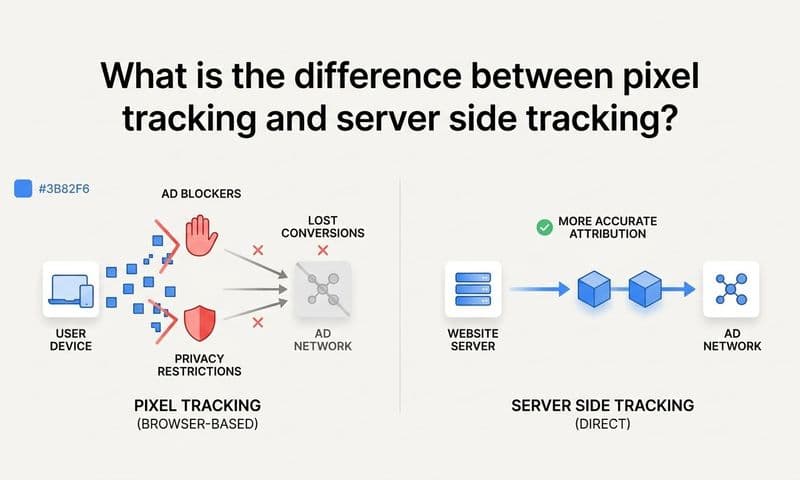
The Meta pixel fires from a user's browser and is blocked by ad blockers, Safari Intelligent Tracking Prevention, and iOS App Tracking Transparency restrictions. The Conversions API sends events directly from your server to Meta and is not affected by browser-based limitations. For CRM events that happen days or weeks after the original browser session, the Conversions API is the only viable method.
Can I send CRM events to Meta without coding?
Yes. Platforms like Cometly provide a no-code integration that connects your CRM to Meta CAPI without requiring custom development. Cometly handles event enrichment, hashing, deduplication, and payload formatting automatically, making it the fastest path for B2B SaaS teams who want this setup without engineering resources.
What CRM events should I send to Meta?
Prioritize events that represent real business value: qualified leads, opportunities created, demos booked, and closed-won deals. Avoid sending every CRM status change or internal workflow update. The goal is to give Meta's algorithm high-quality signal, not high-volume noise.
How do I capture the fbclid to pass with CRM events?
Add fbclid as a hidden field in your lead capture forms so it is automatically populated from the URL when a prospect arrives from a Meta ad. Store the value in your CRM at the point of lead creation. This lets you pass the Facebook click ID with downstream CRM events even weeks or months later when the deal closes, which is critical for long B2B sales cycles.
How long does it take for CRM events to appear in Meta Events Manager?
Server-side events typically appear in Events Manager within a few minutes of being sent. However, attributed conversion data in Ads Manager may take up to 24 to 48 hours to reflect, depending on Meta's reporting pipeline and your attribution window settings.
Putting It All Together
Sending CRM events back to Meta through server-side tracking closes the gap between your ad spend and your actual revenue outcomes. When Meta's algorithm learns from closed-won deals and qualified pipeline rather than raw form fills, it finds better prospects, reduces wasted spend, and improves the quality of leads your sales team receives.
The core steps are clear: generate your CAPI access token using a system user, map the CRM events that represent real pipeline value, connect your CRM to a server-side sending layer, build valid payloads with hashed user data and unique event IDs, verify event match quality in Events Manager, and use attribution data to refine which events drive the most optimization value.
Before going live, run through this checklist:
Pixel ID and access token stored securely. Generated from a system user, not a personal account.
CRM stages mapped to Meta event names. Closed-won mapped to Purchase with value and currency included.
PII hashed before sending. Email and phone SHA-256 hashed in lowercase with no spaces.
event_id included in every payload. Matching the event_id passed by your browser pixel for deduplication.
fbclid captured at lead creation. Stored in your CRM as a contact property for use with downstream events.
EMQ score reviewed in Events Manager. Passing email, phone, and fbc wherever available.
Closed-won or high-value events prioritized. Ranked correctly in Aggregated Event Measurement settings.
For B2B SaaS teams, the fastest path to this entire setup is a platform like Cometly, which handles the CRM connection, event enrichment, and CAPI relay in one place while also providing full attribution visibility across every channel. You get the server-side infrastructure and the attribution data to act on it, without building anything from scratch.
Ready to close the loop between your ad spend and revenue? Get your free demo and see how Cometly connects your CRM events to Meta's algorithm so you can scale campaigns toward the outcomes that actually matter.